

 Michael Mardahl
Debugging FSLogix slow sign-in issues can be a stern reminder of just how many things interact with each other during the Windows login sequence. Most of the time, it might not even be FSLogix that’s at fault – or at least not entirely, which you can read about in this post where we must once again fix the OS and not FSLogix (*Psst* it’s all about App Readiness this time).
If you missed the previous post that this one extends, then do yourself a solid, and check it out in case you are going mad googling through all sorts of solutions: FSLogix slow sign-in (fix)
The problem
Imagine running a large RDSH farm, either on-prem or using Azure Virtual Desktop (formerly Windows Virtual Desktop). Now, imagine that all your users have to wait several minutes the first time and perhaps each subsequent login. And all they have to look at is a black screen with a cursor, no progress indicators; add to that, once the desktop finally renders, the CPU is tied up for several minutes!

This is what I had to deal with recently. And since solutions were nowhere to be found, I decided that sharing the cause and resolution with you good folks reading this blog was my duty to the community.
The cause
The internet is overflowing with issues surrounding this phenomenon in both persistent and non-persistent VDI/RDS environments. It is not even isolated to Windows servers because the culprit is actually the App Readiness Service, which is responsible for initializing the user profile with, among other things, AppX packages.
Q: How do you know it is the App Readiness service?
A: I used the awesome ProcMon: Process Monitor – Windows Sysinternals
Anyway, the App Readiness service is required for any modern desktop or multi-session host, so please don’t just take for granted that you can disable this service, and all your problems disappear (even though it might seem so).
The App Readiness service
As I said, this service is important, and without it, Windows Update will not work properly, your AppX packages will start to vanish, and rot will set into the deepest corners of Windows.
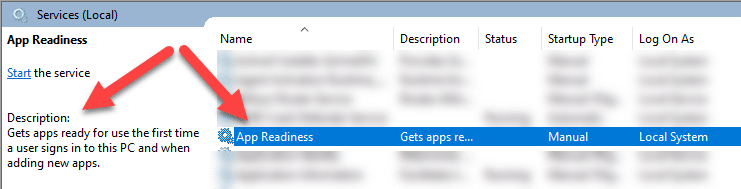
But this post is not about why you should have the service enabled. It is more of why it might be slowing you down, especially with FSLogix in the mix.
You see, the FSLogix container, and others like it, seem to insist on re-enumerating the AppX installations. So, basically, reinstalling them each time a user signs in to their desktop.
Normally the process is cached by the AppX Deployment Service. And should only happen once in a while for a regular user profile. So you might dismiss even doing anything about such an intermittent slow sign-in issue.
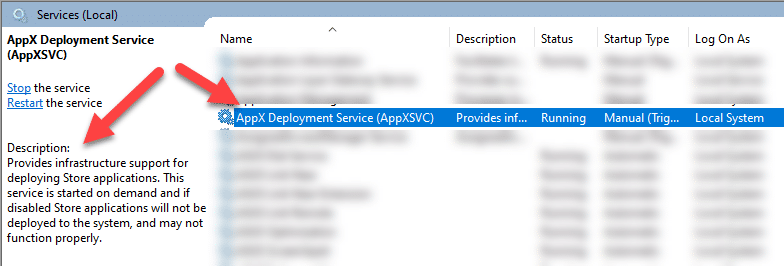
From the learnings in the previous blog post, we know that FSLogix does not do too well if too many things need to be enumerated/evaluated etc., during the sign-in.
The reason App Readiness is especially hard on FSLogix sign-ins
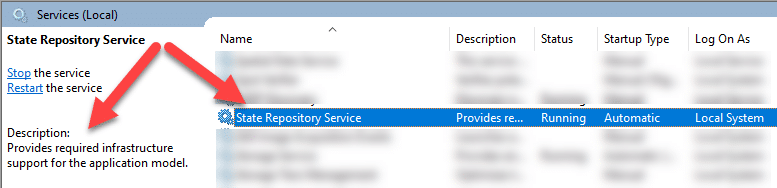
As it turns out, the App Readiness service will actually start the AppXsvc, which will then do the work with the AppX packages needed in the user’s profile. And this, in turn, kicks the StateRepository service into gears, which is where things might start to go really bad.
What is this StateRepository service, you say? Well, there is not a whole lot of information about it online. For this blog post, all you need to know is that it’s a service that on the backend operates an SQLite database that stores information about all the AppX packages. And it is the same file/database for all users!
The database file is located in “%SystemDrive%\ProgramData\Microsoft\Windows\AppRepository”. If you want to take a look, you can open up an elevated prompt and run the following commands.
cd %SystemDrive%\ProgramData\Microsoft\Windows\AppRepository
dir state*
Now imagine that this database grew too large, and the system had to work with that database for each user sign-in. That could, at some point, cause fatigue of system resources.
The StateRepository database size
Now, if you have a single environment, you might not notice that this database had become too large because “what is the normal size anyway?”.
Let’s see about the output from the command I showed you in the previous section…
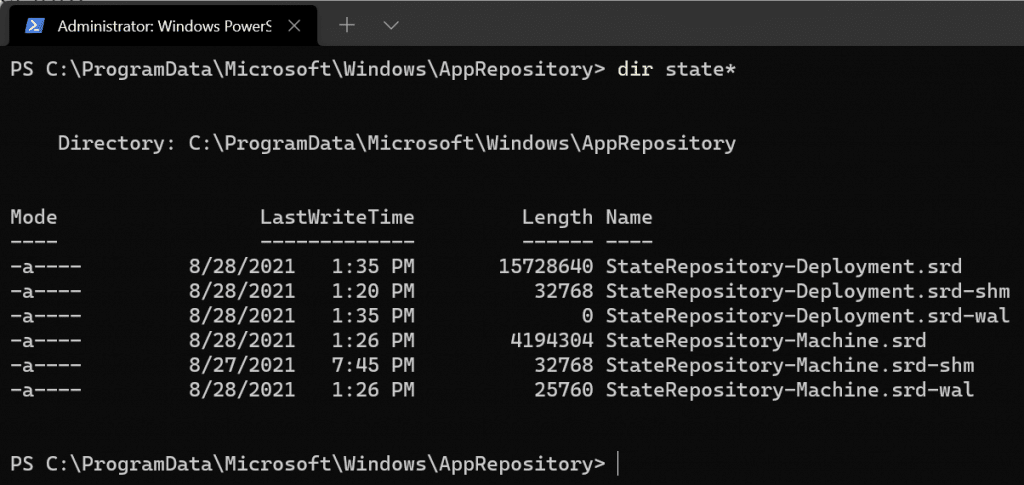
The screenshot above is from my Windows 11 computer with a bunch more AppX packages than your average RDS Farms. As you can see, the files are only a few MB in size.
I have not been able to find a document that states what the normal size is. So let’s see what the size is on a server that is suffering from FSLogix slow logon with a black screen:
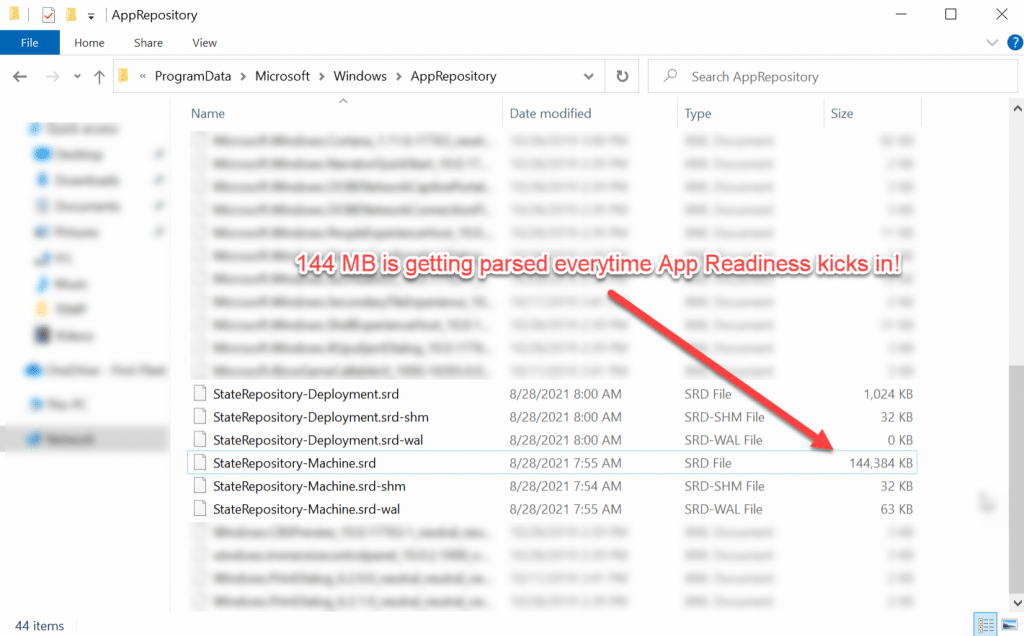
Quite a difference, right? Poor server! Having to process this database file simultaneously for several user logins. Mornings must be hell…
Q: Why did this happen?
A: I don’t know.
Q: So, do we dare delete this?
A: Sure we do!
Since the StateRepository service will automatically recreate a new database at startup.
We have backups of our servers/workstations (right?).
The script to fix the StateRepository database bloat
So, since there is good reason to believe this action has to be done on several servers. I wrote a quick script to delete the StateRepository database (which could be locked by services). You can fetch a copy from my GitHub repository here:
invoke-StateRepositoryReset.ps1 (github.com)
In short, this script will attempt to stop the associated services and delete all the StateRepository database files.
This bit of PowerShell is a straightforward version of the script. You should use the full version from the GitHub repo.
Get-Service -Name StateRepository | Stop-Service -Force
Get-Service -Name AppReadiness | Stop-Service -Force
del C:\ProgramData\Microsoft\Windows\AppRepository\StateRepository*
Get-Service -Name StateRepository | Start-Service
After having completed the database reset, FSLogix slow sign-in should be a thing of the past. That is, unless you are running your farm on a dumpster with spinning disks, then nobody can save you.
Conclusion
StateRepository bloat/corruption is bad for FSLogix, Mmmkay?
Please bear in mind that this knowledge is shared for learning purposes only. So, do your own tests etc., before deploying this fix into production environments.
Respect each other out there – we can get through this – we are meaningless without each other.

 Simon Skotheimsvik
 Jan Ketil Skanke
 Nickolaj Andersen
 Maurice Daly
 Sandy Zeng
 Ben Whitmore



Same issue on Windows 11 Multi-User 23H2, but these files are now locked and you cannot delete them even with administartor permissions. If you take ownership and use ICACLS to add permissions, the files can be removed, but it results in start menu corruption.
Hello!
Can’t figure out how do you stop AppxSVC – it’s unstoppable at WS2019
sc queryex AppXSvc
(NOT_STOPPABLE, NOT_PAUSABLE, ACCEPTS_SHUTDOWN)
so script can’t stop StateRepository and can’t delete files.
no any difference if I will use SYSTEM account or any Admin, cause of “NOT_STOPPABLE” AppxSVC property
Hi,
After upgrading to the latest FSLogix version the black screen issue should have gone however I noticed it took more than 1 minute after login for some users for the start menu to become active. The startmenu would show the loading icon for a long time and then suddenly pop-up.
This customer also had the black screen issue (sometimes needing to wait more than 5 minutes).
I also applied the Virtual Desktop Optimization Tool.
https://github.com/The-Virtual-Desktop-Team/Virtual-Desktop-Optimization-Tool
When looking at the files you mention they are nearly 100MB in total.
I used Sysinternals PStools PSexec.exe to run your script as system and after reboot the login delay was completely gone and login was instant…what a difference. I don’t know if the files will regrow but for now they have remained stable and just 1 or 2MB.
It appears there are no other issues when randomly trying to launch some applications but it almost sounds too good to be true…
I couldn’t thank you more!
Truly appreciate the nice feedback and taking time to write it out like that <3
Another possible thing to look at. In my case the staterepository files weren’t bloated but I found the following.
Based off some clues in this thread https://techcommunity.microsoft.com/discussions/azurevirtualdesktopforum/appreadiness-service-and-black-screen/1107153 I searched the AppModel-Runtime event log for the text “failed” and found some errors mentioning the Microsoft.UI.Xaml.2.2_2.21909.17002.0_x64_8wekyb3d8bbwe, Microsoft.UI.Xaml.2.4_2.42007.9001.0_x64_8wekyb3d8bbwe, and Microsoft.VCLibs.140.00_14.0.27810.0_64_8wekyb3d8bbwe packages.
Based off of that I decided to run the powershell script from https://learn.microsoft.com/en-us/fslogix/troubleshooting-appx-issues which re-registers the packages from HKLM\SOFTWARE\Microsoft\Windows\CurrentVersion\Appx\AppxAllUsersStore\Applications and found that when doing that I received install failed messages for those same 3 packages stating that it couldn’t find the AppManifest.xml file. Looking at the path registry value for these packages under the associated registry keys and they were set to %systemdrive%\Program Files\WindowsApps\. I went to these folders and verified the folders existed and the AppManifest.xml file was there.
Looking closer at the powershell error and found that it was saying the path it was looking in was c:\windows\system32\%systemdrive%\Program Files\WindowsApps. I looked at the path values for the other packages that weren’t giving errors and none of them had the %systemdrive% variables, they were all C:\. Based off of that I switched the path for the 3 bad packages from %systemdrive% to C:\.
After changing those patch values and un-disabling the App Readiness service I did a couple of logins and it seems to have fixed the issue. The logins are now down to about 35 seconds which is acceptable and I no longer see any failures in the AppModel-Runtime event log. I am thinking that these keys were set wrong with something installed in the image we are using.
Thanks so much for sharing. sorry about the approval delay, I dont look at my old posts often enough..
Hi Michael,
Great debug, thanks. The question is how often do we have to clean-up this app db?
I’m running Windows 11 on my gaming machine no VM whatsoever, and this happens every time I turn on my PC. I have to press the reset button once this happens, not shutdown and restart, then everything is ok. Obviusly resetting like this is eventually going to go horribly wrong for my boot disk, so as a solution it’s hardly desireable, plus its a pain in the ass.
Disabling the app rediness service worked for about 6 months, then the issue returned, even with the service disabled. Disabling this service didn’t cause me any issues in the least. At any rate, once the issue returned I was back to square one.
Eventually deleting the %ProgramData\microsoft\windows\AppRespository\StateRespository-Machine.srd file fixed the problem. My file was only 15MB so not large by some standards listed here but still….
Anyway, that has solved the problem. The file has been recreated and is currently 5.12MB in size. Go figure.
Dear
I have a azure virtual desktop windows 11 with fslogix , windows is 21H2 version
And I have issue sometimes with this service , long time to logon and logoff.
I try to access the folder C:\ProgramData\Microsoft\Windows\AppRepository\StateRepository but no rights. Is it safe to give my admin account permissions on this folder ? Make him owner ?
Guys
you’re aware that Microsoft knows about this and has a tool to fix this?
It’s called SRCleanupTool.v1.1exe and needed to be run as SYSTEM.
Contact Microsoft Support and request this tool, then pun it as follows
psexec64.exe -sid cmd /c C:\_temp\SRCleanupToolv1.1.exe
note change C:\temp to the location of the tool.
if you change /c to /K then you can see how many records get cleaned up.
Regards
Kern Z
Great info. sorry it took me so long to get to the post approved.
In defence of everyone not knowing about this tool – it is held by support internally and not shared publicly, which there might be a good reason for that I dont know.
Microsoft actually had several engineers reached out to me about this article when I wrote it back in 2021. And said they would look into this – I guess the SRCleanupTool is a product of that work, but they never told me, and I have never had the problem ever againn since 2021, so I did not know about that tool even.
but I really appreciate you posting here about it for others to find – as I am sure this problem will be around for many years more…
p.s. we don’t use FXLogic so this is not FX Logic related.
OMG OMG OMG this fixed our issue which we’ve had for 1 year now, I’ve been trying to fix this for 1 year! Every now and then I searched the net high and low. thank you so much!
Really glad it helped.
Yeah, it can happen on a regular Remote Desktop Environment or Citrix I guess. It is OS related.
Wow, Michael….
I have searched the seven seas of the internet and have never been able to find this… I mean seriously this causes me so much heartburn….
God bless you sir!!!!
I really appreciate that it was a help to you good sir 🙂
Hi Michael, Great article. I just deployed a new Microsoft Azure Virtual Desktop (AVD) along with FSLogix. The Session Host is a 4vCPU with 32GB RAM and at this point, I am only testing with 1 user. The OS is up to date. On the Multi-Session Windows 10 (Version 22H2 , OS Build 19045.2311) Session Host VM I am experiencing a 22 to 24 seconds login and checked the StateRepository-Machine.srd file size and its only 3MB. What I noticed in your article is that StateRepository service is set to Automatic and my implementation is set to Manual and I have been unable to change it to Automatic. Does this contribute to the slow login? Also, if I do not utilize the AVD’s client login (desktop or web) to the same Session Host and instead choose the plain old RDP from another server, my login experience is 9 to 10 seconds only (half the time it takes using AVD method). Any ideas?
Hi Alec,
My screenshots are from a standard Windows server now AVD. and I know that MS have been making changes to the state repository architecture to avoid the situation that I am describing.
So, you can’t really compare this to your environment. I don’t think your problem is related to the stuff mentioned in the article, especially if this is a new environment, as the corruption takes time to build up.
As to any suggestions, I can’t help with that stuff here in the comment. As there are far to many variables to take into account for what could be causing delays in your specific AVD environment.
I hope someone else reading these comment’s will be able to explain the differences in the different RDP clients, but my guess is the capabilities are not equal, thus more is being “enabled” when you login with the AVD client
I tried your script with an administrator domain account logged on to the server (excluded by FSLogix).
After that i ran your script with SysInternals as System Account.
After Reboot of the server modern apps are not opening anymore (startmenu, settings)
I get the message “Your Start menu isn’t working”
Logging in with FSLogix processed users does work.
Hi SK,
I am sorry to hear you had issues after running the script.
I have not run it with PSExec from Sysinternals, but merely as a shutdown script on the server. so you can try that.
If you succeeded in deleting the correct files, and the files don’t automatically get recreated. then it will be an issue for you AppX applications from the Microsoft Store.
This could indicate that there are other serious issues with the server or interference form anti-virus software etc.
The possibilities are many, and that is why backups and testing is recommended in the article.
Hi, Have you resolve the issue ? I have the same problem with all no fslogix accounts and all modern apps disappear.
Thanks
I had the same issue on an Azure Virtual Desktop. So I tried this fix. The files got recreated succesfully. At first I also got the message “Your start menu isn’t working”, but rebooting the server fixed this.
I noticed the login process was a bit slower the first time, but all next times it was fast again!
But all other AppX apps were broken. It seemed like they weren’t installed anymore.
Photos, notepad, paint, opening terminal from start menu,…
Checking the WindowsApps folder I noticed all apps were 0kb in size. I had to restore a snapshot to restore this to the original situation. I will create a ticket for this at Microsoft though.
Hi Michael, thank you for the insights thru your blog on this AppX issue. This is very helpful, just for POC sake I did provision a windows 10 machine and tried to login to the PS1 console with admin credentials) but unfortunately everytime I try to run the delete command to delete the StateRep* files it gives me Access denied (I have stopped the services first) and then trying to delete it with the Admin credentials. Any pointers there?
My bad I should read all the comments .. your advice to other gentleman to run it thru “System” account using Sysinternals tool PSExec helped me get this thru and I was able to delete the StateRepo* files and upon starting the service I was able to get those new files :). Thank you. You think we should backup those files in PROD environment for any reason Or basically starting the service will take care of recreating the files and all Apps attached to that VM (session host) will work as expected?
Beware of deleting this on a 2019 terminal server, it broke modern authentication for Outlook 2019 for me and I had to replace the files. AADBroker stopped functioning for each user. Is there another way to decrease the size of the file without deleting it?
Hi Shawntech,
The AADBroker is indeed an AppX package that is maintained by app readiness.
But if you rebooted, it should have recreated the repository and the broker “should” work again – does in the cases I have tested.
I know there is work going on at Microsoft to backport a fix for this issue to server 2019.
Hi Michael,
Have seen good performance on server RDP 2019 server of about 300 users in farm of 3 session host servers. We were able to delete the files after taking the ownership and giving Administrator the full access to modify/delete files. Blank screen issues is seen to be resolved and App readiness (meant for O365 licensing, in our case) too is running. Will observe this. May be we need to perform the cleanup periodically.
Many Thanks.
Rupesh
Thanks for adding your feedback Rupesh!
Out of interest what is the state of your AppReadines Service – Manual/Automatic? In my case, it is this service that eliminates the black screen if disabled but I cannot do this as it introduces lots of other issues.
Everything is at default.
You need the app readiness service unfortunately.
I have hear word that the FSLogix team will look into this along with the app readiness team. so hopefully one day…
Hi Michael, I have applied this fix and if anything the black screen appears to be longer. Will do more testing but so far no gain on windows 10 20h2. Will come back to you soon.
In my case it was on a server and not a windows client. so you might also have other issues. there are many things that relate to the black screen.
Modern Apps from the store being one of them, so if you have something else that is interfering with the deployment of those, that could also cause the black screen with a cursor.
Hi Michael,
Trying you script but getting access denied on delete
del : Cannot remove item
C:\ProgramData\Microsoft\Windows\AppRepository\StateRepository-Deployment.srd: Access to the path
‘C:\ProgramData\Microsoft\Windows\AppRepository\StateRepository-Deployment.srd’ is denied.
At C:\bhpinstall\invoke-StateRepositoryReset.ps1:46 char:5
+ del C:\ProgramData\Microsoft\Windows\AppRepository\StateRepositor …
+ ~~~~~~~~~~~~~~~~~~~~~~~~~~~~~~~~~~~~~~~~~~~~~~~~~~~~~~~~~~~~~~~~~
+ CategoryInfo : PermissionDenied: (C:\ProgramData\…-Deployment.srd:FileInfo) [Remove-
Item], UnauthorizedAccessException
Hi Orion,
I suggest running the script as SYSTEM
that should have sufficient access to delete the file.
Here are some examples of how to do this.
https://powershell-guru.com/powershell-tip-53-run-powershell-as-system/
This is fantastic work, Michael! Thanks for sharing. With the amount of Black Screen posts on the web, this is the best!
Thanks Adam <3