


 Maurice Daly
 Jan Ketil Skanke
 Michael Mardahl
Over recent times we have seen Microsoft introduce a range of security hardening configuration options as the world continues to adopt to the fact that their internal infrastructure is no longer the main threat surface. In this post we will look at the latest of which (due to be enforced in January 2024).
The new Authentication Methods Policies configuration (also referred to as the “converged authentication method experience”) is something which brings a welcome change, retiring per user based MFA configurations managed through the Microsoft admin portal (which effectively just launches a legacy portal of it’s own), along with separate configuration methods for Azure AD Self Service Password Reset. This is welcomed change, especially for the legacy per user MFA configuration, which if you are still using it, please stop.
Table of Contents
Authentication methods policies – The new normal
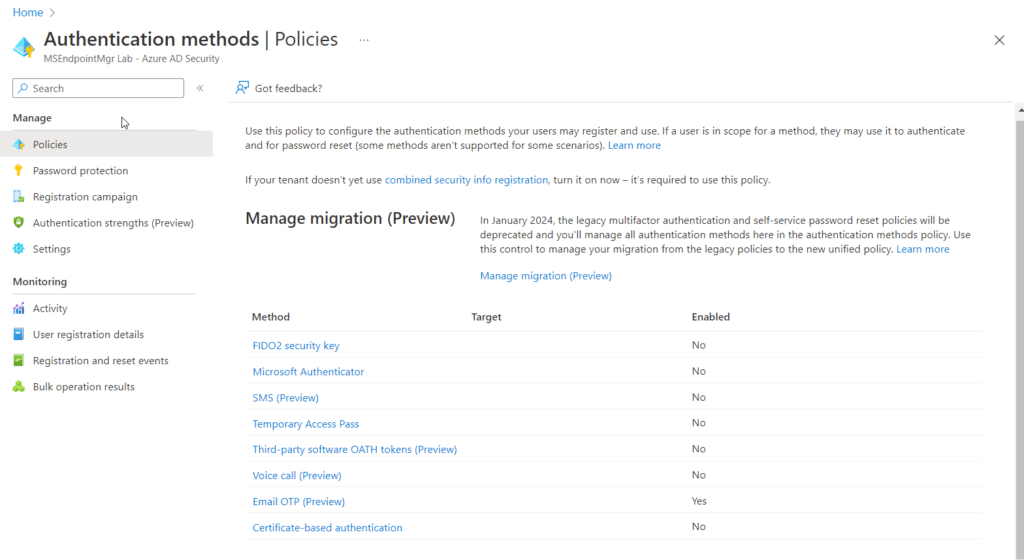
The existing authentication methods policy blade has received a new function called “Manage Migration (preview). (Azure AD -> Security -> Authentication Methods).
Essentially this new migration path will allow you to handle all authentication methods policies in a single blade of the Azure AD portal. Vs. SSPR authentication methods being in it’s own blade and legacy MFA methods being in an entirely different portal of it’s own (which looks like child of a grey piece of paper and a corpse).
Pro tip – read this blog in it’s entirety before doing anything in production. There are a ton of external references throughout this post. And for good reason! Authentication in Azure AD is a complex subject which takes time to master.
Bye Bye Per User MFA Configuration
A little intro for those who might not know what “Per user MFA” covers;
Per user based MFA configuration has been around since the “Office 365” brand was launched (ca. 2012), providing the ability to enforce multi-factor authentication requirement for users. Management takes place within the Microsoft Admin portal (https://admin.microsoft.com), and by default resulted in users being provided with an “app password” which was used to sign into Microsoft Office applications, providing in effect an “MFA bypass” for those trusted applications due to the fact they had a system defined password which was different to the user’s actual password.
The experience IMO was, shall we say.. terrible. This methods is also classed as legacy authentication and thus app passwords do not work with accounts which are required to use modern auth.
Since then thankfully the world has moved on quite a bit, and today, if you are using the legacy MFA configuration portal to enforce MFA, you are simply doing things wrong. Multi-factor challenge requirements should be all handled via conditional access, and identity protection policies, depending of course upon your Azure AD Premium licensing model (non-premium licensees should enable security defaults yesterday!)
Supporting Microsoft Learn Documentation
Enable per-user Multi-Factor Authentication – Azure Active Directory – Microsoft Entra | Microsoft Learn
What is Conditional Access in Azure Active Directory? – Microsoft Entra | Microsoft Learn
What is Azure Active Directory Identity Protection? – Microsoft Entra | Microsoft Learn
Authentication Configuration “revamped”
As many of you might have spotted either in the Azure Active Directory blade, or within the new Microsoft Entra portal (https://entra.microsoft.com), authentication methods provides you the ability to enable and configure multiple authentication types which can be used within your Azure tenant.
If you haven’t spotted this, then you are also missing out on the fact that MFA app based challenges where due to be changed to require “number matching” for all tenants on February 27th 2023, although this has been pushed back to May 8th 2023 when you read the documentation;

If that has come as a surprise to you, then I suggest you review the changes (Protecting authentication methods in Azure Active Directory – Microsoft Entra | Microsoft Learn) and issue communications to your user base as to avoid your helpdesk staff having to deal with “did you change something? I have to enter a number now” type questions.
Pre-Migration Considerations
Before you go ahead and make the jump to the new way of doing things, it is important you consider how removal of MFA enforcement will impact the security of your tenant. For example, if you have been using this method for your admins, you either need to enable security defaults (which brings limitations), or ensure / create conditional access policies are configured to cater for the different authentication scenarios.
Privileged Role Accounts
As an absolute minimum baseline, protecting your privileged role members can be undertaken through using the CA policy templates;

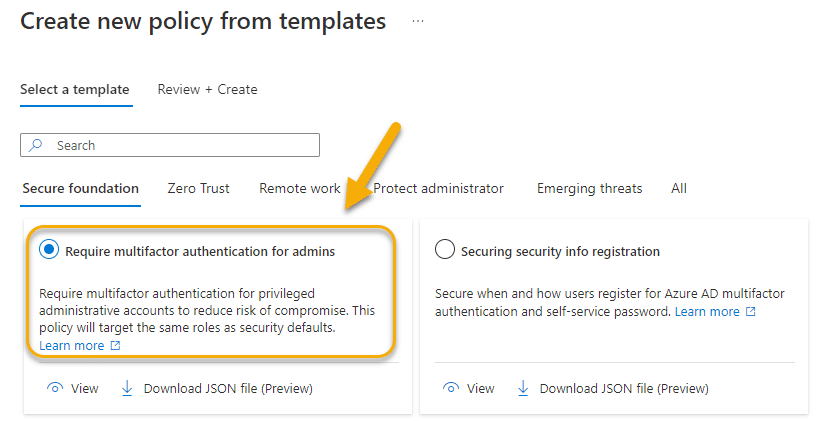
As always when creating conditional access policies, ensure you have a break glass / emergency admin account created, with a complex password, and excluded from the conditional access policy (just in case something goes bump in the night with the MFA service) – Manage emergency access admin accounts – Azure AD – Microsoft Entra | Microsoft Learn.
General User Access
We won’t be covering conditional access policies for all scenarios in this post, as it is a large topic by itself. I would suggest that you take a persona based approach to your CA configuration however, and recommend that you read the Microsoft learn docs in relation to this – Conditional Access architecture and personas – Azure Architecture Center | Microsoft Learn
Security Questions in SSPR – not in the new experience
Within the migration to the new authentication methods configuration, the ability to use security questions for Azure Self Service Password Reset is retired. This is for the best, as typically the answers to questions are either forgotten or the same answer is used for all questions. Microsoft has however stated that a migration will happen at a later point, but for now you must either remove the security questions option, or leave it as is in the SSPR portal.
The Migration Process
The process of moving from the old legacy portal to the new authentication methods configuration is quite simple, so let us step through this.
- In the Authentication Methods configuration (in either Azure portal Active Directory Authentication Methods or Entra portal Authentication methods) you will see a notice about the “Manage migration (Preview)” feature;

- Clicking on the “Manage migration (Preview)” link, clicking this will display the following slide in:
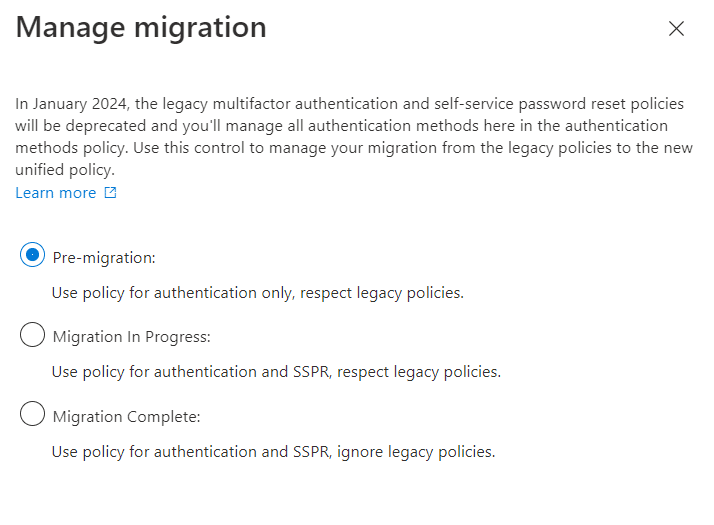
Nice an easy step-by-step method (good job MS!) But, First things first. Before pulling any levers we need to start with reviewing and aligning the existing supported methods to our desired outcome.
Review and set
- Going into the legacy MFA portal (Multi-factor authentication (windowsazure.com)), first of all you should review which methods are currently enabled;
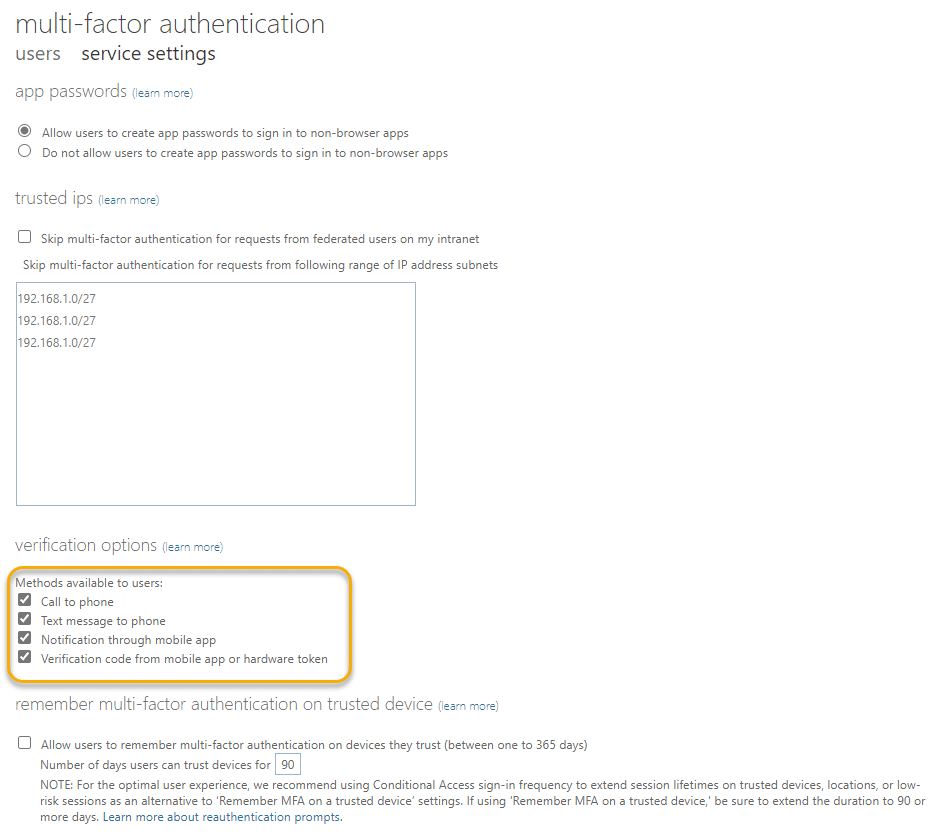
- Going into the Azure AD Self-Service Password Reset configuration, again let’s review the existing methods here also;
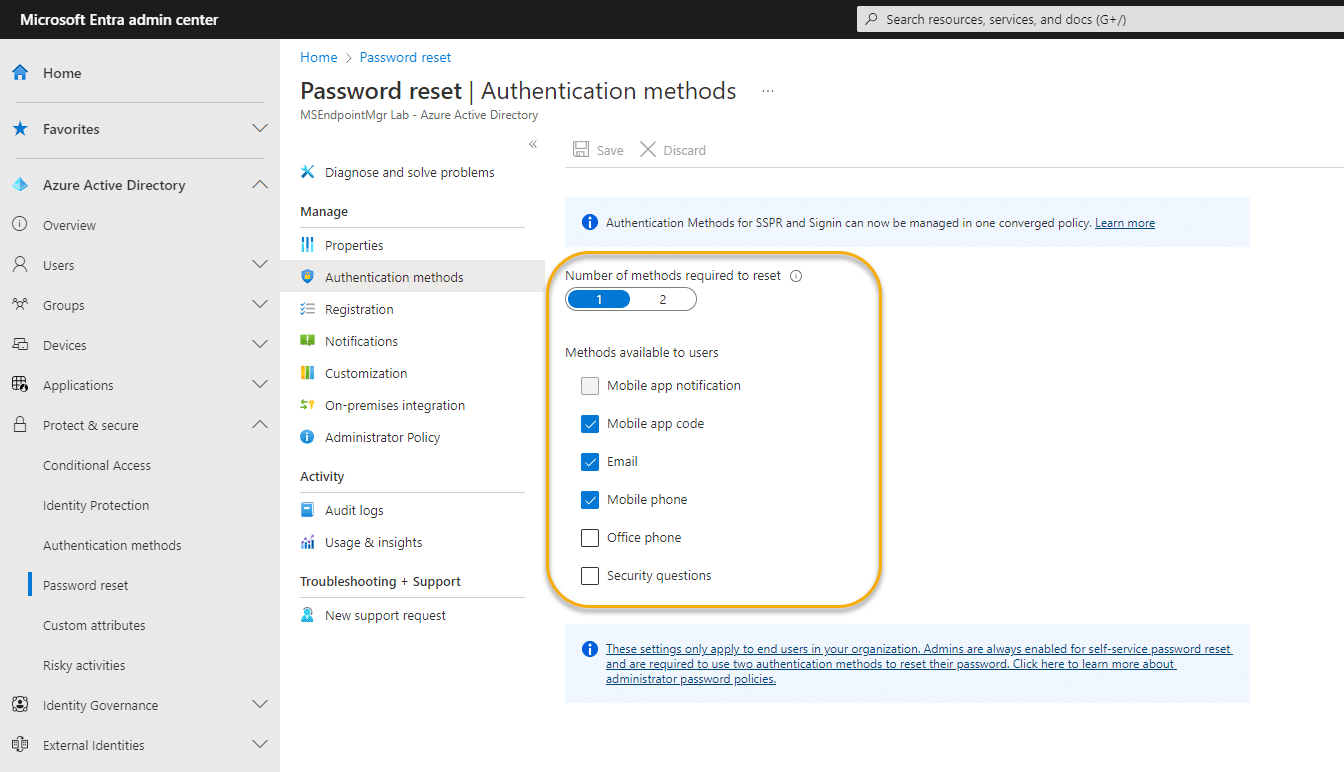
- In this example we have then decided that I am going to retire SMS and Phone calls, moving to a model that uses the Authenticator app and Temporary Access Pass methods.
We recommend, where possible, retiring SMS and Phone call authentication as they are the weakest options, however, you could take a phased approach where these methods are phased out. - Before we make changes, we need to disable the legacy MFA enforcement for all enforced users in the legacy MFA portal (you did read the part about Conditional access right? No? OK, wow…):
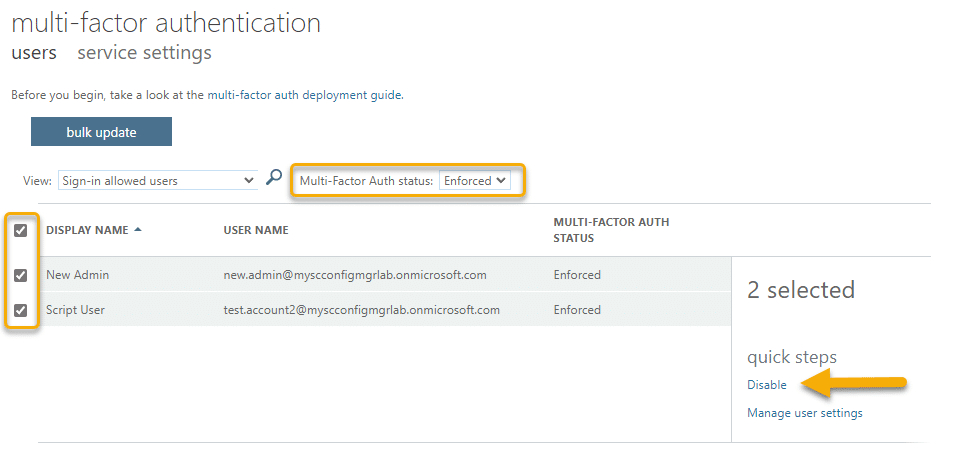
- Now going back to the Authentication methods configuration, we configure the required methods;
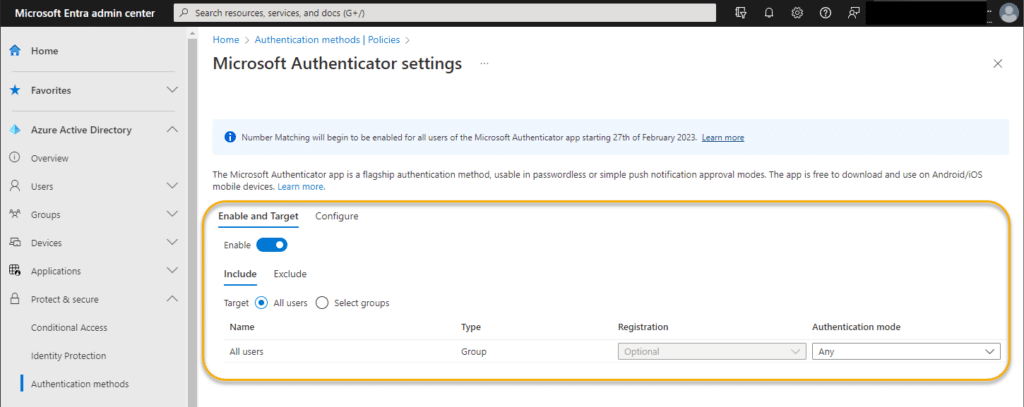
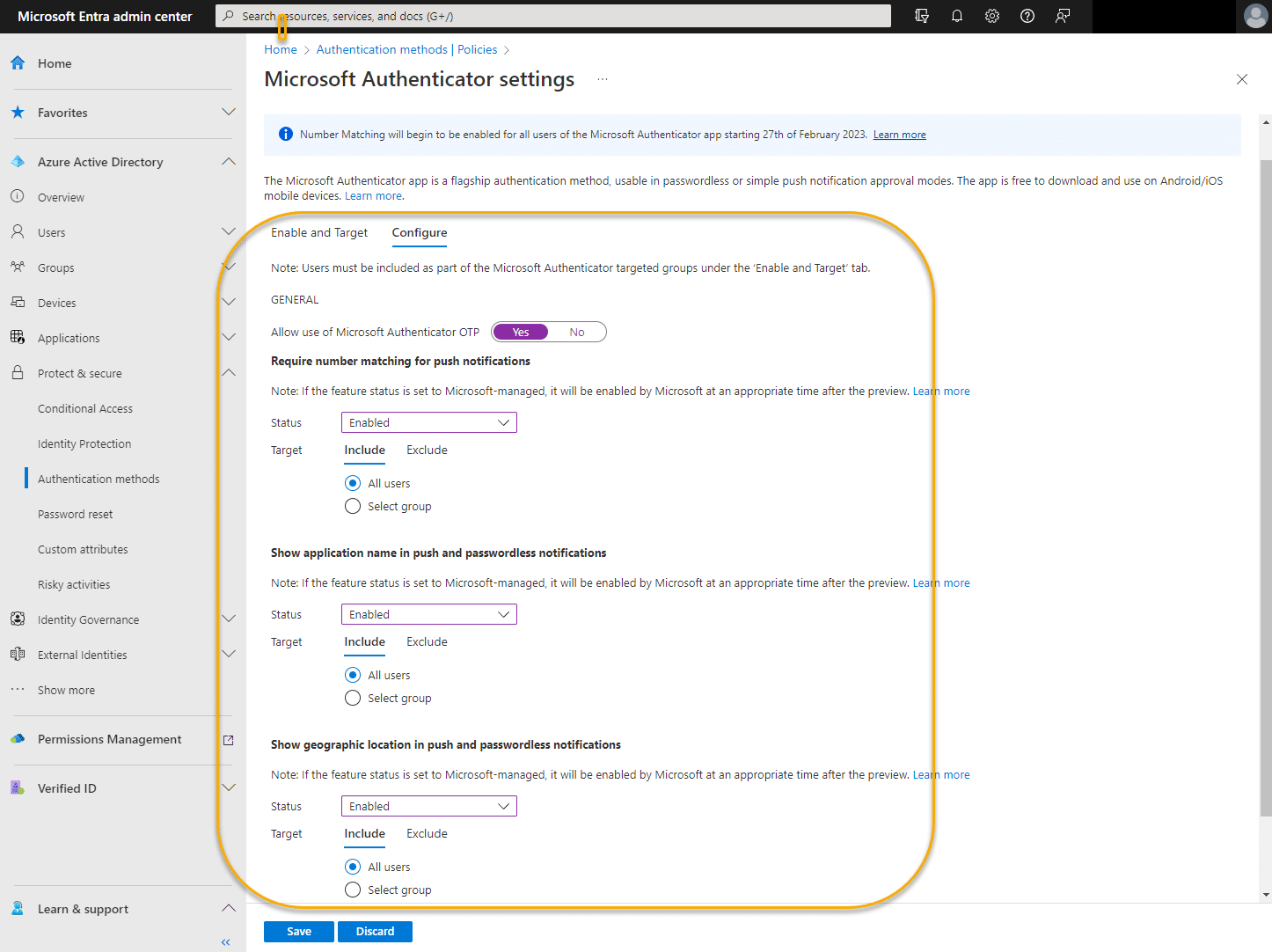
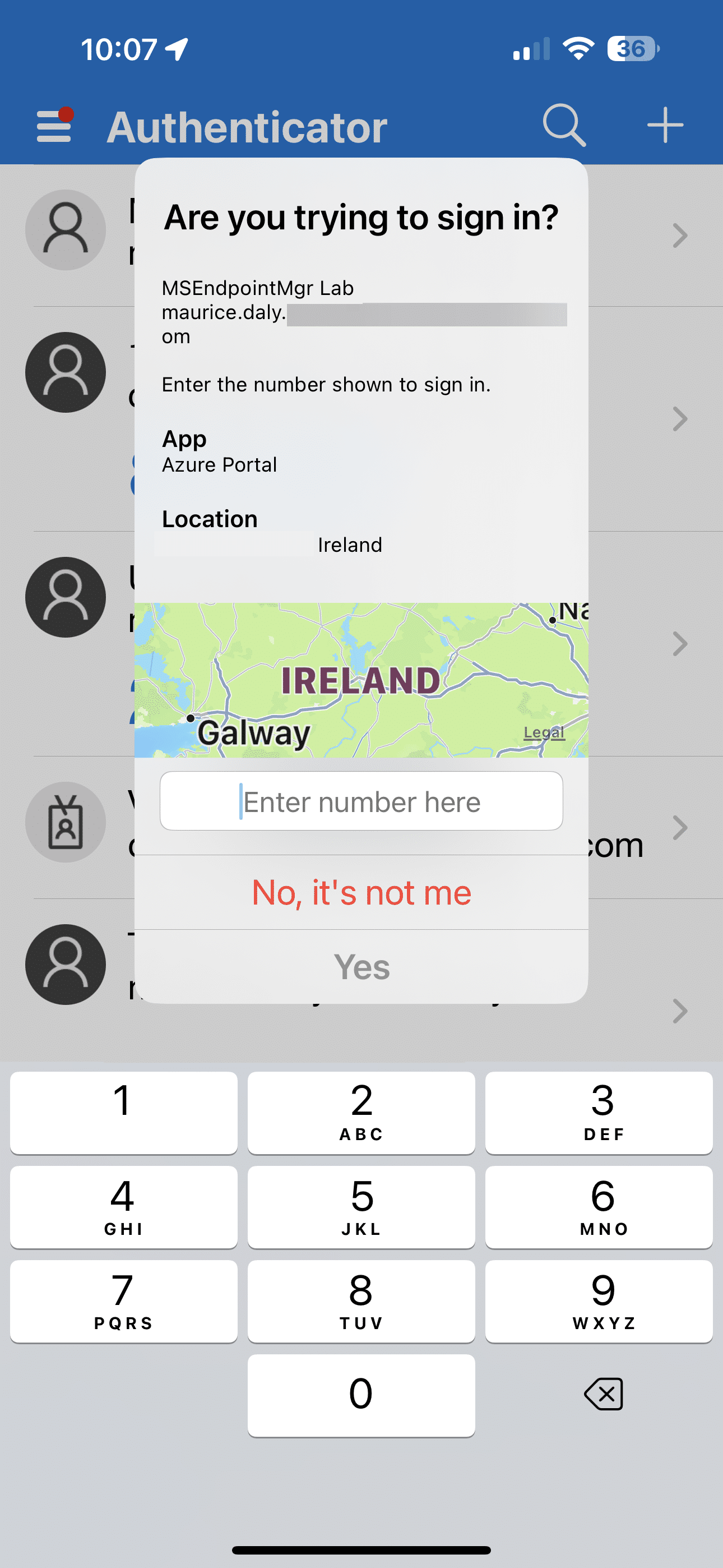
- In the configuration options for the Authenticator method, we can also specify to enforce number code matching before it is pushed by Microsoft to all tenants, and also include the options to display the location and application signing in, all of which are important information to present to the end user;
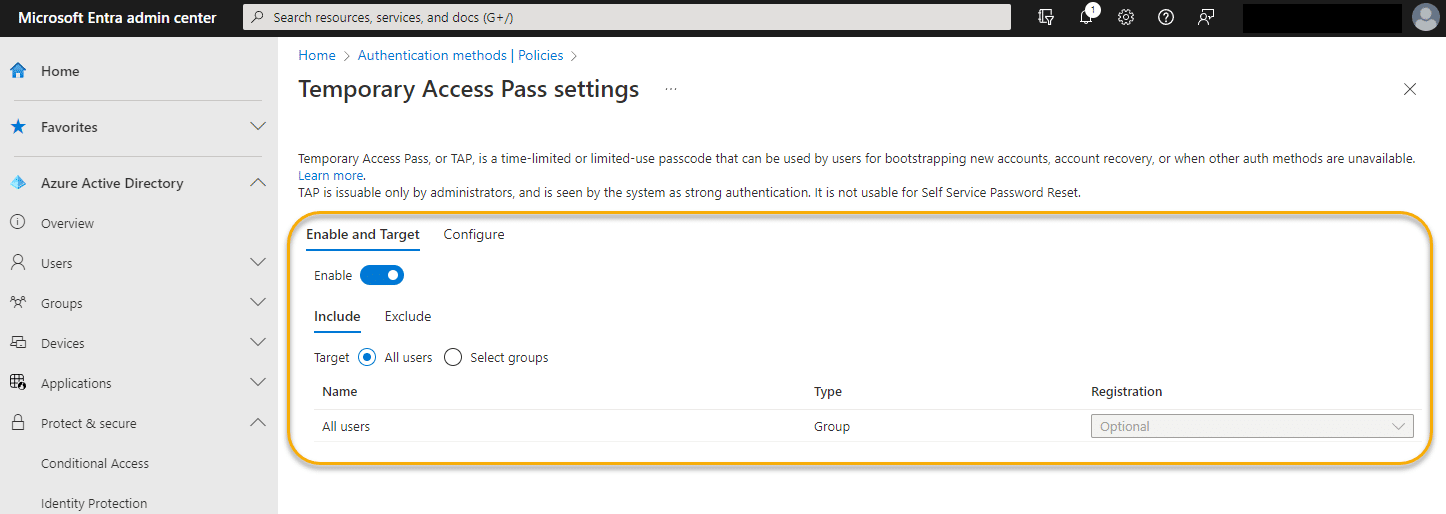
- The temporary access pass configuration is then also configured;

With the new configuration set, for both the legacy MFA portal and AD SSPR configuration we are ready remove all methods from these legacy management areas. Which we can’t do before we set our migration state to “migration in progress“.
Now we’re making bacon!
When switching to the authentication methods policies blade to manage all our methods, the first thing that we need is to set the tenant into a “Migration in Progress” state. What this does under the hood is to allow us to uncheck the supported MFA methods in both the legacy per user multi-factor, and Azure AD Self Service Password Reset configuration pages (don’t worry, you can roll-back).

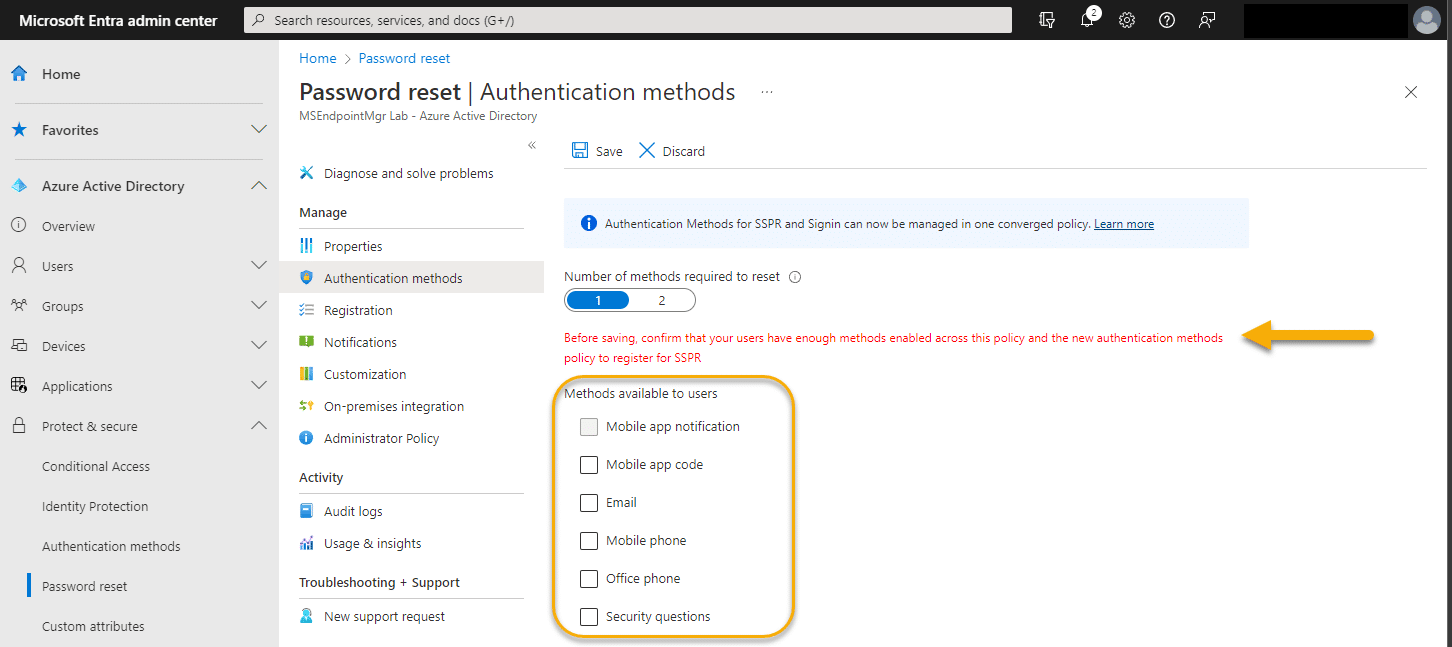
- Now go to the SSPR blade and uncheck all methods (except of course the security questions if you need those to be enabled, which I am sure your users will just love you for!).
NOTE: the “Number of methods required to reset” is not being moved as this is an SSPR only setting (Self-Service Password Reset is still it’s own thing as a service and will not disappear anytime soon). Please keep this in mind and always make two methods available in the new policies blade.
Self-service password reset policies – Azure Active Directory – Microsoft Entra | Microsoft Learn
- Next up is the legacy (phonefactor) MFA portal, where you can find relief in the fact that you never have to visit this portal again! So, untick those verification options and get the heck out of there!
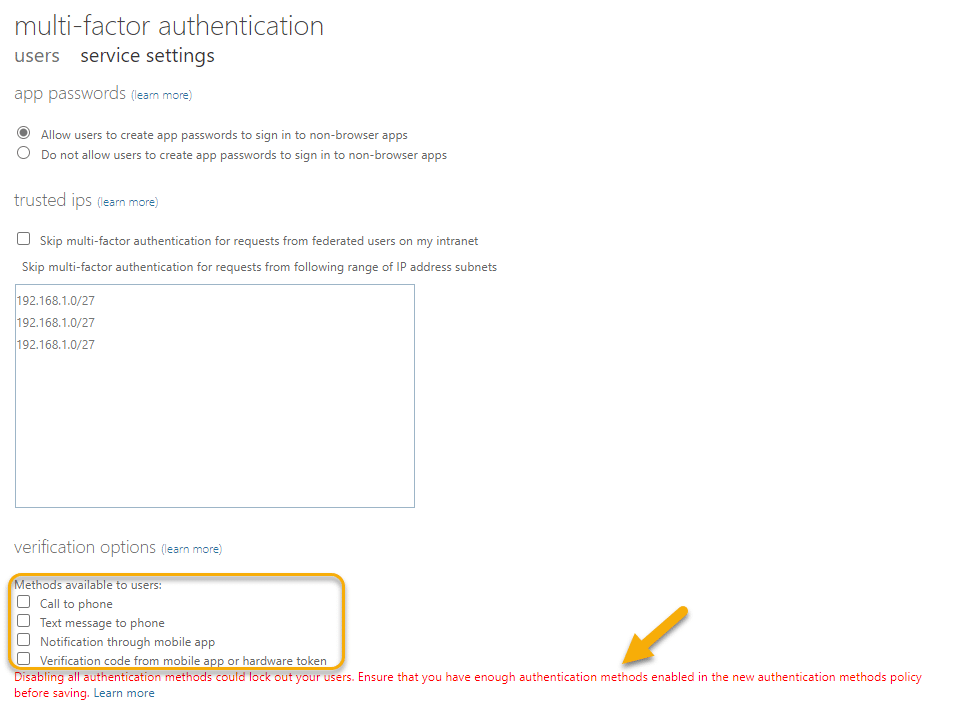
- If you receive the following error, try refreshing the portal as the configuration has not been updated to allow you to have no methods specified (try refreshing / signing out and back in );
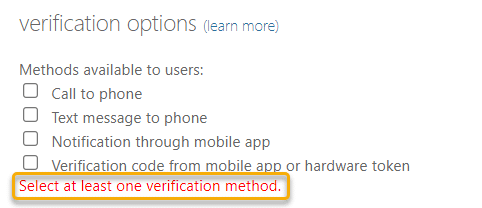
- Testing the updated configuration, we should receive an authenticator prompt with the additional number matching and location information displayed;
If you believe you can achieve
- At this point with all configuration items done, we can go and set the tenant state to “Migrated” in the Authentication Methods configuration;
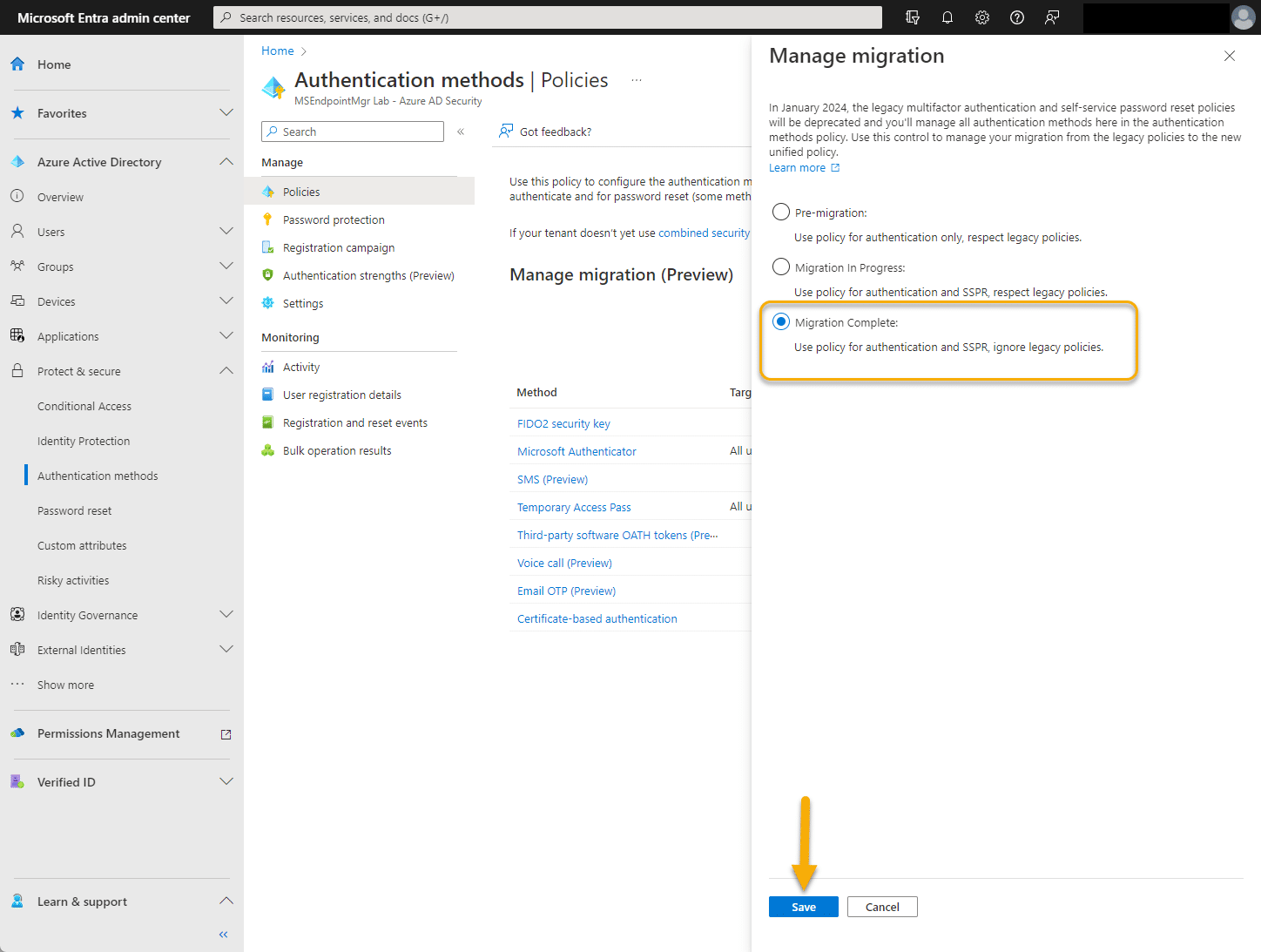
- You should now receive a visual confirmation that the setting has been applied;

That’s it! You are welcome to treat your self to a steak dinner, you deserve it!
Closing Thoughts
Migrating to the authentication methods configuration is a straight forward process, resulting in a single configuration page for your auth methods (security questions aside).
So our suggestion is to plan your migration today, and not leave it up to January 2024 to be in a panic situation, especially when it comes to your conditional access policy configurations.
And as always we do appreciate the likes and follows on the SoMe’s as it is our only real indicator of popularity , as we seldom leave our bat-cave.



 Simon Skotheimsvik
 Nickolaj Andersen
 Sandy Zeng
 Ben Whitmore



I manually migrated to the converged Authentication methods policy early but rolled it back a few weeks later after some users got stuck in an MFA loop and couldn’t log in. The issue was resolved after the rollback.
I suspect this may be related to our tenant using Security Defaults. What is the correct migration path in this case?
yes. Security defaults has that issue. sorry for the late reply.
I think they have solved this now as they have made the automatic migration tool available.
Great article!
But what if SSPR is enabled only for a specific group using Microsoft Authenticator, while MFA is enabled for everyone using the same Microsoft Authenticator? How can we maintain SSPR availability for the specific group during the migration?
It may be simple if this is tenant wide. In our case SSPR is limited to the group. So decision must be made if the new policy is available for everyone or the former SSPR group members only.
“Now we’re making bacon!” “If you believe you can achieve” this put’s a smile on my face. 🙂 Thanks.
Thanks for the article! If I only want my users to use Microsoft Authenticator for self-service password reset, which settings do I need to enable in the new authentication methods? I already have MS Authenticator targeted at all users. Is that enough? I do not have the “Allow use of Microsoft Authenticator OTP” enabled though. Do I need this for password resets?
Hello. Can you provide any reference indicating that Microsoft plans to retire security questions at some point? This seems to remain as an option in the new experience. And this blog is the only place I have seen this mentioned, but I have not been able to corroborate this anywhere else.
Thanks.
It is something I talked with the team at Microsoft about. there is no official mention in writing. But have a look at SSAR, which will be the way forward. SSPR is dead (to me anyway).
Nigel, it seems like we will have two choices for enforcing MFA once per-user MFA is retired: Security defaults or conditional access. Is it your understanding that there will be no way to require MFA on each user sign-in unless one of these is in use? Obviously Security Defaults has a lot of limitations if you need to make exceptions for legacy service accuonts, and conditional access is only available for customers who subscribe to AAD Premium. Best I can tell, for those of us who can’t use Security Defaults and don’t have AAD Premium, we can require the users to set up authentication methods but we can’t actually enforce its use unless we upgrade to AAD Premium.
I have been looking all over for a way to record the legacy methods and set the new authentication methods via PowerShell. As we are an MSP and have several clients to do this for.
Do you know of a link or can you provide PowerShell commands to find this information?
Regards,
Wes
Nice article! Thanks!
All steps are completed except the last one, switch to “migration complete”. All legacy policies have been disabled (MFA and SSPR), but the error below is displayed when trying to complete. Some help?
“Couldn’t save new migration state: you cannot move to migration complete until disabling all methods in the legacy MFA and SSPR policies.”
Thanks.
Great article!
One thing I have noticed in the article and in practice is Admin roles behave differently, requiring two authentication methods for SSPR: https://learn.microsoft.com/en-us/azure/active-directory/authentication/concept-sspr-policy#administrator-reset-policy-differences
Recently I performed this Authentication migration and one of my admins received a registration prompt on log in for phone even with this method disabled.
Hi Nigel,
Thanks for the feedback.
The article does assume existing knowledge of how SSPR functions, but I will update the article with a note 🙂
I did speak with Microsoft about this, and there are no plans to move the control for “number of methods required”.
For Admins it has and will always require two methods. the policies that we are moving are simply controlling what methods are allowed not the amount that SSPR will require.
Since he was prompted, I assume you have required registration in SSPR in the “Password reset | registration” blade?
Thanks for the very thorough response,
Yes, this is set to require register.
I guess the question I have is what two methods will be enforced to admins with the new authentication experience. Namely, we do not allow SMS or Phone now, yet this is the prompt one of our admins received after migration.
Hi Nigel, what I heard from Microsoft is that you must ensure that two methods exist as a minimum, you are not able to choose which ones specifically is for the Admin (admins are just special, and donø’ we all feel that way as admins? ;)), look at :https://portal.azure.com/#view/Microsoft_AAD_IAM/PasswordResetMenuBlade/~/AdminPasswordResetPolicy.
FYI. Mobile phone calls are always allowed.