

 Michael Mardahl
Just when you thought OAuth was safe, along comes ConsentFix to remind us that attackers are always two steps ahead. If you’ve been following security news lately, you’ve probably heard about this clever attack that abuses legitimate Microsoft authentication flows to steal authorization codes. The good news? There’s a dead-simple PowerShell fix that’ sorts this out for everyone (yes, even the “security defaults” peeps without Conditional Access licensing).
“The best time to fix a security hole was yesterday. The second-best time is right now, before your users start clicking suspicious links.”
– Ancient IT proverb, probably
So what exactly is ConsentFix?
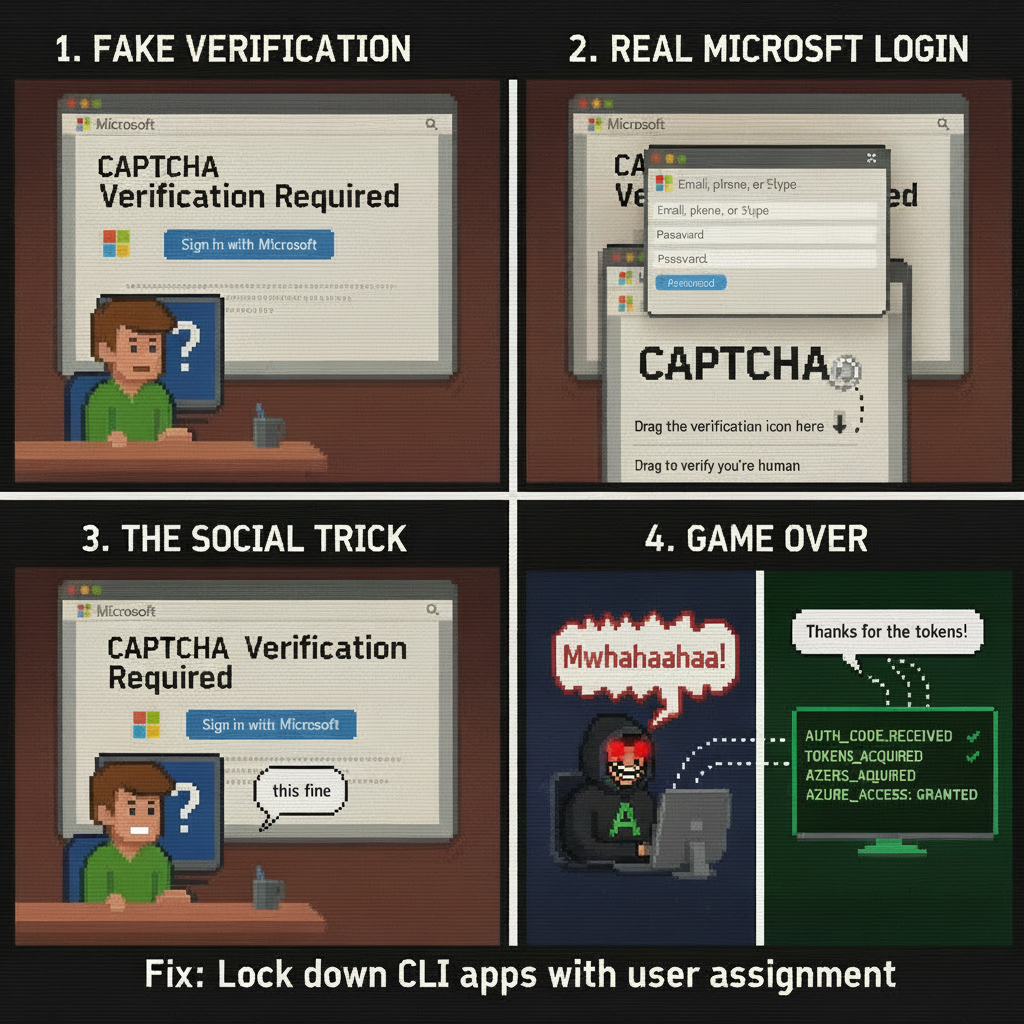
ConsentFix (also called AuthCodeFix) is an OAuth attack that tricks users into handing over their authorization code through social engineering. Here’s the scary part: the Microsoft login page they see is 100% legitimate. The attacker creates a real OAuth flow, the user authenticates successfully, and then… copy-paste (or drag-and-drop) happens. Suddenly, the attacker has valid tokens to your Azure resources.
Yes. It does require a stupid user action, but we can all get stupid sometimes (I get stupid in da club all the time bruh!)
The attack works because Microsoft first-party apps like Azure CLI, Azure PowerShell, and Visual Studio are pre-consented in every tenant – any user can authenticate to them without needing admin approval. When an attacker tricks a user into starting an OAuth flow with one of these apps, the user sees a legitimate Microsoft login page and successfully authenticates. The browser redirects to localhost (where these apps listen during normal use), but since the attacker initiated the flow, no app is actually listening! The browser shows an error with the auth code sitting right there in the URL bar. One social engineering trick later, and boom – the attacker redeems that code for tokens.
Why should you care?
- Works on any user in your tenant, even if they’ve never used CLI tools before
- Bypasses MFA, Conditional Access, and device compliance checks (during initial auth code redemption)
- Gives attackers access to Azure Resource Manager, Microsoft Graph, and more
- Refresh tokens can be valid for weeks or months – they really just need one hour to do a ton of damage.
- Your fancy security tools won’t catch this reliably – it looks like legitimate OAuth activity
Imagine this: You have a guest hiding in your house (since forever), that guests just pops-up when anyone in your house invites them – they don’t even use the front door!
If you’re thinking “my users would never fall for that” – remember that security researchers and CTOs get phished too. Social engineering is called “engineering” for a reason.
The Solution
The fix is surprisingly simple: pre-create the service principals for vulnerable apps and require user assignment before anyone can use them. This way, random users can’t auto-consent when an attacker tricks them into initiating an OAuth flow.
Think of it like this: instead of leaving your front door unlocked because “nobody’s home anyway,” we’re installing deadbolts on doors that don’t even exist yet. Proactive security FTW!
Step 1: Connect to Microsoft Graph
First, we need the right permissions to create and modify service principals.
Connect-MgGraph -Scopes "Application.ReadWrite.All", "AppRoleAssignment.ReadWrite.All"
What this does: Requests admin consent to manage applications and assign users to apps. You’ll get a consent prompt on first use – just click Accept (no need to consent for the entire Tenant).
Step 2: Check What’s Already in Your Tenant
Let’s see which vulnerable apps already exist in your environment.
# Define the apps we're concerned about
$targetApps = @{
    "04b07795-8ddb-461a-bbee-02f9e1bf7b46" = "Azure CLI"
    "1950a258-227b-4e31-a9cf-717495945fc2" = "Azure PowerShell"
    "04f0c124-f2bc-4f59-8241-bf6df9866bbd" = "Visual Studio"
    "aebc6443-996d-45c2-90f0-388ff96faa56" = "VS Code"
    "12128f48-ec9e-42f0-b203-ea49fb6af367" = "Teams PowerShell"
}

# Check which ones exist
$found = @()
foreach ($appId in $targetApps.Keys) {
    $sp = Get-MgServicePrincipal -Filter "appId eq '$appId'" -ErrorAction SilentlyContinue
    if ($sp) {
        $found += [PSCustomObject]@{
            Name = $targetApps[$appId]
            AppId = $appId
            ObjectId = $sp.Id
        }
    }
}

if ($found.Count -eq 0) {
    Write-Host "No vulnerable apps found yet - that's good!" -ForegroundColor Green
    Write-Host "We'll create them proactively and lock them down." -ForegroundColor Yellow
} else {
    Write-Host "Found $($found.Count) app(s) to protect:" -ForegroundColor Yellow
    $found | Format-Table
}
Why this matters: Service principals only exist after first use. If nobody’s used Azure CLI yet, the service principal won’t exist. But an attacker can create it by tricking any user into clicking their malicious link. We’re getting ahead of them.
Step 3: Lock Down the Apps
Now comes the magic – we’ll pre-create these service principals and require user assignment.
$apps = @(
    "04b07795-8ddb-461a-bbee-02f9e1bf7b46",  # Azure CLI
    "1950a258-227b-4e31-a9cf-717495945fc2",  # Azure PowerShell
    "04f0c124-f2bc-4f59-8241-bf6df9866bbd",  # Visual Studio
    "aebc6443-996d-45c2-90f0-388ff96faa56",  # VS Code
    "12128f48-ec9e-42f0-b203-ea49fb6af367"   # Teams PowerShell
)

foreach ($appId in $apps) {
    $sp = Get-MgServicePrincipal -Filter "appId eq '$appId'" -ErrorAction SilentlyContinue

    if (!$sp) {
        Write-Host "Creating service principal for $appId..." -ForegroundColor Cyan
        New-MgServicePrincipal -AppId $appId | Out-Null
        $sp = Get-MgServicePrincipal -Filter "appId eq '$appId'"
    }

    Write-Host "Locking down $($sp.DisplayName)..." -ForegroundColor Yellow
    Update-MgServicePrincipal -ServicePrincipalId $sp.Id -AppRoleAssignmentRequired:$true
}

Write-Host "`nDone! CLI tools are now locked down." -ForegroundColor Green
Write-Host "Users need explicit assignment to use these apps." -ForegroundColor Green
What just happened?
- We created service principals for all vulnerable apps (if they didn’t exist)
- We set
AppRoleAssignmentRequiredto true on each one - Now, only assigned users can authenticate to these apps
- Random users can’t auto-consent anymore – the attack fails at step 1
Step 4: Assign Legitimate Users
If you actually do have users who need CLI access (like yourself maybe?), assign them:
# Get your user ID
$userId = (Get-MgUser -Filter "userPrincipalName eq '[email protected]'").Id

# Assign yourself to Azure CLI (repeat for other apps as needed)
$appId = "04b07795-8ddb-461a-bbee-02f9e1bf7b46"  # Azure CLI
$sp = Get-MgServicePrincipal -Filter "appId eq '$appId'"

New-MgServicePrincipalAppRoleAssignedTo `
    -ServicePrincipalId $sp.Id `
    -PrincipalId $userId `
    -ResourceId $sp.Id `
    -AppRoleId "00000000-0000-0000-0000-000000000000"

Write-Host "Assigned! You can now use Azure CLI." -ForegroundColor Green
Pro tip: Create a security group for CLI users instead of individual assignments. That way, you can manage access through group membership or even use PIM for just-in-time access (Slayyy!).
Testing Your Protection
Let’s make sure this actually works. Try authenticating with Azure CLI as a non-assigned user:
You should see an error similar to:
az login

AADSTS50105: The signed in user is not assigned to a role for the application
That’s exactly what we want! The attack is blocked before it even starts.
Now test with an assigned user – authentication should work normally.
Important Gotchas
Click to expand: Things to watch out for
There are more ServicePrincipals that you can choose to block!
The ServicePrincipal AppIds that are in the example script are just a few must-haves out of many more. Check out EntraScopes.com for more AppIds that you can add to the script. But, fair warning, these might be a bit harder to actually block, since there is a greater chance of them being needed by the users.
Duplicate Names Are a Problem
If you plan to use the DisplayName property for anything, note that Microsoft first-party apps can have identical display names. Always use the AppId (GUID) to identify apps uniquely.
This Doesn’t Fix Everything
User assignment blocks unauthorized users, but if an assigned user gets phished, the attack still works. Consider layering this with:
- Conditional Access to require trusted locations
- Token Protection (if you’re on Windows with Entra-joined devices) – Not a very mature feature IMHO.
- User education (because social engineering is hard to defend against)
Service Principal Creation Can Take Time
After running the script, wait a few minutes before testing. Azure needs time to replicate the changes across regions.
Privileged Users Are High-Value Targets
If you’re only assigning Global Admins to these apps, remember that attackers specifically target privileged accounts. Don’t assume your admins are immune to phishing – they’re not.
Troubleshooting
Click to expand: Common issues and fixes
Error: “Insufficient privileges to complete the operation”
Cause: You don’t have the required Graph permissions.
Fix: Make sure you’re using Application.ReadWrite.All scope when connecting to Graph. You might also need to be a Global Admin or Privileged Role Administrator just while fixing ConsentFix.
Script runs but users can still authenticate
Cause: Replication lag or you’re testing too quickly.
Fix: Wait 5-10 minutes and try again. Clear any cached tokens (az account clear for Azure CLI).
Legitimate user can’t authenticate anymore
Cause: They’re not assigned to the app.
Fix: Use the assignment script from Step 4 to grant them access. Check their user ID is correct. Or use the Enterprise Applications blade in the Entra portal if you like a UI (search All Applications, not just Enterprise Applications).
How do I undo this if something breaks?
Fix: Set AppRoleAssignmentRequired back to false:
$sp = Get-MgServicePrincipal -Filter "appId eq '04b07795-8ddb-461a-bbee-02f9e1bf7b46'"
Update-MgServicePrincipal -ServicePrincipalId $sp.Id -AppRoleAssignmentRequired:$false
Defense in Depth: Layer Your Security against ConsentFix
User assignment is great, but don’t stop there. Consider these additional layers that I am just grazing over quickly – So, you will make sure to test and lookup the known issues with these methods and test – right?
1. Conditional Access for Location Blocking
Block refresh token usage from untrusted locations:
- Users: All users
- Cloud apps: Microsoft Graph Command Line Tools + Windows Azure Service Management API
- Conditions: Location NOT in “Trusted Locations”
- Grant: Block access
This prevents attackers from using stolen refresh tokens from their infrastructure.
2. Token Protection (Windows Only)
If you’re running Windows 10+ with Entra-joined devices, enable Token Protection:
- Cloud apps: Exchange Online, SharePoint Online, Teams
- Session: Require token protection for sign-in
This cryptographically binds tokens to the device, making browser-based auth code attacks fail completely.
3. Monitor Sign-In Logs
Watch for:
- Non-interactive sign-ins to CLI tools from unexpected locations
- Large geographic distance between interactive and non-interactive sign-ins with the same SessionId
- Auth code redemptions followed immediately by unusual API calls
I am sure Security Copilot can whip up some cool playbooks to alert on these things.
Final Words
ConsentFix is a reminder that even legitimate OAuth flows can be weaponized with the right social engineering. The good news is that this particular attack has a simple, effective mitigation: lock down those service principals before attackers can abuse them.
Five minutes of PowerShell today could save you from a very awkward conversation with your security team tomorrow. Or worse – explaining to your CEO why an attacker had Azure admin access for the past three weeks.
Stay safe out there, and remember: proactive security beats reactive incident response every single time.
As always, I hope you find inspiration in this article. And I welcome any feedback in the comments or preferably a follow on Linkedin @michael-mardahl.
Useful Links
Respect to the Team at Glueckkanja for getting all the nerdy details sorted!
- ConsentFix: How a New OAuth Attack Bypasses Microsoft Entra Conditional Access
- EntraScopes: Browse Vulnerable Apps
- Microsoft Graph API: Create Service Principal
- Microsoft Learn: Token Protection
This post was written with the help of AI for structure and readability – because even IT pros need a good editor!
#DontHateThePlayerHateTheGame

 Simon Skotheimsvik
 Jan Ketil Skanke
 Nickolaj Andersen
 Maurice Daly
 Sandy Zeng
 Ben Whitmore



Add comment