


 Simon Skotheimsvik
Testing firewall ports is something you think should be simple. Open a port, test connectivity, and you’re done. But working with Intune-managed endpoints can turn a “simple test” into a subtle puzzle. Recently, I ran into exactly that scenario while piloting an inbound TCP port for a customer. The story spans two tenants, two different behaviors, and a small setting that makes all the difference. Let’s dive into why pilot testing is different with Intune. Is a separate pilot environment a good idea?
Step 1 – Start From Zero
I always like to replicate customer challenges in my lab. That allows me to do piloting without breaking the eggs on the customer side. Starting from zero on my Firewall challenge, I needed a port to test on, and what’s not to like with TCP 8080?
I began by verifying that the port I wanted to test wasn’t already in use on my device.
netstat -a | findstr 8080
This verified that there were no listeners on my test device. Good, clean state. Next, I started a temporary listener using PowerShell. This is a lightweight approach that requires no app or service to run.
$listener = [System.Net.Sockets.TcpListener]8080
$listener.Start()

The netstat command now verified that the port listener was running on my device. Magic? Not exactly…

From another device on the network, I tried to connect to the device’s port.
Test-NetConnection <ip-address> -Port 8080
Nothing. Blocked. The listener was running, but traffic couldn’t get through. That’s the firewall as basic as it gets.
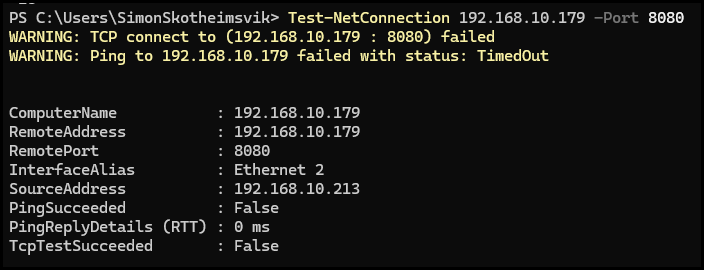
So far, the expected behavior is that the firewall blocks inbound TCP by default.
Step 2 – Test with Local Firewall Rule
For a quick-and-dirty test, I used the LAPS account to create a manual inbound firewall rule to allow inbound TCP port 8080.
New-NetFirewallRule -DisplayName "Temp Allow TCP 8080" `
    -Direction Inbound -Protocol TCP -LocalPort 8080 -Action Allow
The remote connection test was now successful; I established a connection from an external device on port 8080. No wonder – I did create the hole myself.
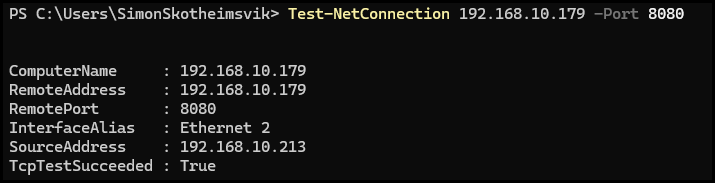
Traffic was now passing through, proving that a Firewall policy was necessary. The cleanup of the manual policy was simple.
Remove-NetFirewallRule -DisplayName "Temp Allow TCP 8080"
Everything worked exactly as intended. This is the kind of isolated test every engineer loves: quick, reproducible, clean.
Step 3 – Deploy via Intune
Next, I replicated the local firewall rule through Intune’s Endpoint Security Firewall blade. Still on my pilot environment.
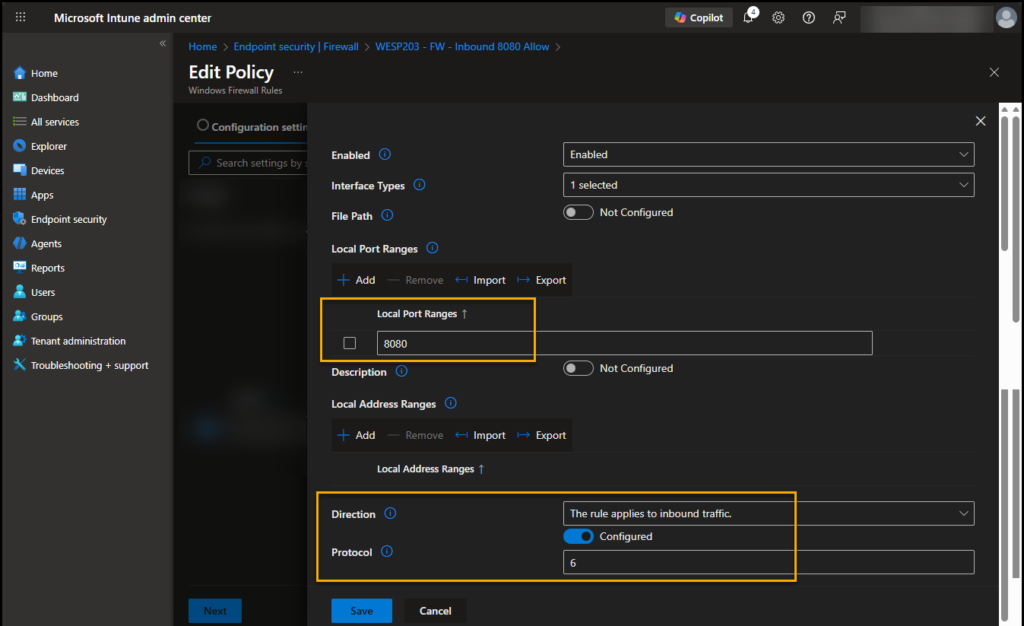
This configuration was assigned to a pilot group, and the firewall policy still flowed. Perfect!
Step 4 – Enter the Second Tenant
With the solution working in the lab, it’s time to move into the customer environment and deploy it. This should be a walk in the park, but better safe than sorry; running initial tests is a best practice.
- Starting the listener and testing connectivity – blocked
- Add the local Firewall rule – still blocked!?
I had a working solution in my lab, but it didn’t adapt to the customer’s environment. The test on the local device made me doubt that I had found the correct solution to the challenge. The devices had identical Windows builds, and they were on the same physical network. Still, the important customer device didn’t respect my test Firewall policy rule.
If your pilot avoids production, expect surprises. What changed? A single Firewall configuration in Intune, “Allow Local Policy Merge,” was set to False.
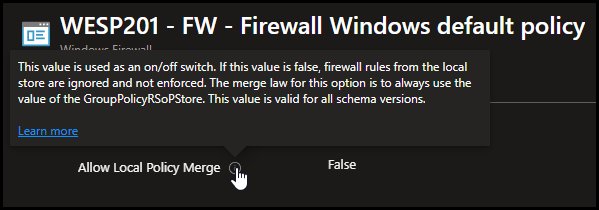
When Allow Local Policy Merge is set to False:
- Local firewall rules are ignored entirely if they conflict with MDM rules.
- GUI and standard PowerShell queries may not show the local rule’s effect.
- Only rules deployed through Intune (PolicyStore = MDM) are evaluated.
- Local testing workflows that work in “looser” environments simply do not reproduce.
In the first tenant, Allow Local Policy Merge was set to True, allowing local rules to coexist with Intune rules. That explains why my first tests worked there but failed in the second environment. My lab environment was not fully replicating the customer environment.
Step 5 – Inspecting Firewall Rules
One challenge remains: Firewall rules deployed via Intune may not appear in the Windows Defender Firewall GUI or in the default PowerShell queries.
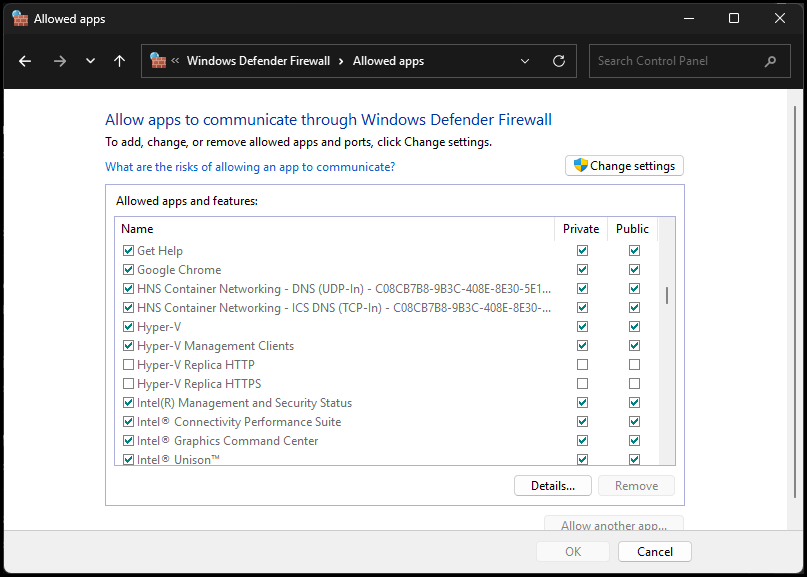
This can make it hard to verify if the firewall policies have applied. You need to check the MDM policy store.
Get-NetFirewallRule -PolicyStore MDM | Where-Object { $_.LocalPort -eq 8080 }This ensures you are seeing the rules Intune is actually enforcing. To see more details, like local or remote addresses, we can include associated filter objects in the command. One example:
Get-NetFirewallRule -PolicyStore MDM |
ForEach-Object {
    $addr = $_ | Get-NetFirewallAddressFilter
    [PSCustomObject]@{
        Name          = $_.DisplayName
        Direction     = $_.Direction
        Action        = $_.Action
        LocalAddress  = $addr.LocalAddress
        RemoteAddress = $addr.RemoteAddress
    }
}
Without “-PolicyStore MDM”, the rules may appear to be missing.
Step 6 – Is a separate pilot environment a good idea?
Local firewall testing isn’t reliable across all tenants.
Small policy settings, like Allow Local Policy Merge, change everything.
Always verify the policy store.
Intune-managed rules live in MDM, not ActiveStore, so your normal Get-NetFirewallRule queries may be incomplete.
Temporary firewall rules are only useful when local rules can merge.
With strict enforcement, only Intune-deployed rules will be respected.
Pilot testing is different with Intune. Is a separate pilot environment a good idea?
Especially in multi-tenant environments, understanding subtle differences can save hours of confusion. Just as important is where those pilots are run. Testing in a separate pilot or lab tenant that isn’t fully representative of the customer environment can easily give a false sense of confidence. Small configuration differences, such as firewall policy merge behavior, security baselines, or endpoint security settings, are often exactly what cause behavior to differ in production.
Running pilots within the actual tenant, scoped to a small device or user group, ensures you validate against the real policy stack: Intune, baselines, Conditional Access, and any inherited configurations that don’t exist in a separate lab. This makes the results far more trustworthy.
A well-scoped pilot group in the production tenant is often safer than a separate “pilot environment” that doesn’t reflect reality. It allows you to catch issues early, document the true behavior, and avoid surprises when the configuration is rolled out more broadly. In the end, this approach reduces rework and shortens troubleshooting time, even if the pilot itself feels less convenient.
Final Thoughts
Firewall testing seems simple: open a port, connect, and done. But in the world of Intune-managed endpoints, it’s not just about the listener or the rule you create. It’s about understanding how policy enforcement works, and knowing where to look when “what should work” doesn’t.
Sometimes, the difference between working and not working is a single checkbox buried in the Endpoint Security policy. And that’s the kind of detail that turns a good pilot test into a reliable deployment.
The closer a pilot is to production, the less fiction remains. Pilots that never quite touch production often become comfort tests, validating intent rather than behavior. The pilots that matter most are the ones running where policies actually apply – because in the end, if it works in production, it works.


 Jan Ketil Skanke
 Nickolaj Andersen
 Maurice Daly
 Sandy Zeng
 Ben Whitmore



Add comment