


 Michael Mardahl
This article is an update to my original 2023 post on the importance of MFA. A lot has changed since then – Microsoft is now mandating MFA, and passkeys have evolved from the “cool new thing” to “the only right thing” Let’s dive into what’s new-ish and why your employees’ personal phones are not the privacy nightmare they think they are.
Quick Facts: Passkeys & Microsoft MFA Mandate
- Microsoft MFA Mandate Phase 1
- Azure Portal, Entra admin center, Intune admin center – 100% enforced since March 2025
- Microsoft MFA Mandate Phase 2
- Azure CLI, PowerShell, IaC tools – Enforced since October 2025
- Microsoft 365 Admin Center
- Full enforcement February 9, 2026 (next month at the time of writing!)
- Passkey Types
- Synced Passkeys (cloud-synced, recoverable) vs. Device-Bound Passkeys (hardware-locked, attestable)
- Microsoft Authenticator Unique Feature
- Only major authenticator app supporting device-bound passkeys afaik
- Self-Enrollment
- Users can set up passkeys 100% on their smartphone – no IT intervention required (nice!)
Microsoft is Done Asking Nicely
Remember when MFA was a “best practice” and “highly recommended”? Those days are over. Microsoft has officially moved from gentle suggestions to mandatory enforcement as part of their Secure Future Initiative. And honestly? As an IT admin who’s been advocating for stronger authentication for over 20 years, this mandate is overdue. The challenge now isn’t deciding whether to implement MFA or not – it’s how to deploy phishing-resistant methods efficiently.
Key stat: MFA blocks more than 99.2% of account compromise attacks. That’s not a typo. Ninety-nine point two percent bro!
Phase 1 enforcement hit the Azure Portal, Microsoft Entra admin center, and Intune admin center with full enforcement back in March 2025. If you’re an admin who hasn’t set up MFA yet… well, hope you like dealing with the Data Protection Team at MS Support and have all the time in the world. Phase 2 kicked in October 2025 and now covers Azure CLI, PowerShell, and all those Infrastructure as Code tools you’ve been automating with. The good news? Read operations don’t require MFA – only Create, Update, and Delete operations. So your monitoring scripts can breathe easy.
The Microsoft 365 Admin Center hits full enforcement on February 9, 2026 – that’s next month. If you’re not ready, now’s the time to get moving (Or opt-in for an extension until July!) . Even if YOU have MFA setup – how about a billing admin or what not?
Passkeys Have Grown Up

If you’ve been following this blog, you know I’ve been banging the FIDO2 drum since 2019. Back then, it was all about hardware security keys and convincing skeptical IT teams that passwordless wasn’t just a fantasy. Well, the fantasy is now reality – and it lives in your pocket and on extensions like 1Password and is rebranded under the term Passkeys (Yes, everyone got together and had tea. And talked about how FIDO2 sounded like the name of a robot dog or the sequel to a terrible movie about a resurrected zombie dog that ended up eating its owner).
Anyway… There are two flavours of passkeys you need to understand:
Synced Passkeys
These are the consumer-friendly option. Your passkey gets encrypted and synced across your devices via cloud services like iCloud Keychain, Google Password Manager, 1Password, or Dashblane. Lost your phone? No problem – your passkey is waiting for you on your new device as soon as you restore from backup (You did enable backup, right?).
The trade-off? Organizations can’t cryptographically verify which device created the credential (no attestation support). For most scenarios, this is perfectly fine. For your CFO’s account that authorizes wire transfers? Maybe not.
Device-Bound Passkeys
These are the enterprise security team’s dream. The private key is generated and stored entirely within the device’s secure hardware – Secure Enclave on Apple devices, TPM on Windows, TEE on Android. It never leaves. Ever. Not even encrypted. If someone steals your phone, they still can’t extract the passkey. If you lose your phone, that passkey is gone forever (which is why you need backup authentication methods and maybe SSAR).
The advantage? Full attestation support. Your organization can verify exactly which authenticator created the credential, its firmware version, and its FIDO certification level. This is how you enforce policies like “only passkeys created on FIPS 140-3 compliant authenticators can access sensitive resources.”
NIST says: Both passkey types are officially recognized as phishing-resistant authenticators. Synced passkeys meet AAL2 requirements, while device-bound passkeys can meet AAL3 for scenarios requiring non-exportable private keys. Read the boring details on their website
Microsoft Authenticator: The Quiet Differentiator
Here’s something that doesn’t get talked about enough: Microsoft Authenticator is the only major authenticator app that supports device-bound passkeys.
Let me repeat that, because it’s important.
Google Authenticator? TOTP only – not even a passkey manager. Google Password Manager? Synced passkeys only. 1Password? Synced. Bitwarden? Synced. Apple Keychain? Hardware-generated but synced.
Microsoft Authenticator? Device-bound only.

This is a deliberate design choice for organizations with strict security requirements. Your passkey credentials cannot be synced, shared, exported, or recovered. They live and die with the device. For regulated industries – finance, government, healthcare – this is exactly what compliance teams have been asking for and why I personally swear by the MS Authenticator app!
And before you ask: yes, Microsoft Entra ID (the identity platform) supports both types. You can use device-bound passkeys through Microsoft Authenticator AND allow synced passkeys through third-party providers. Best of both worlds, depending on your risk appetite.
Now that you understand Microsoft Authenticator’s technical advantages, let’s address the deployment challenge no documentation covers: getting users to actually install it on their personal devices.
The Elephant in the Room: Personal Phones

As an IT admin, you’re about to face the most common deployment roadblock: employee resistance to using personal devices for work authentication. When companies don’t provide corporate phones, this conversation becomes inevitable.
Here are the objections your users will raise (Often a bit agressive if you ask me):
- “I don’t want my employer spying on me!”
- “They’ll track my location!”
- “What if they can see my personal stuff?”
- “It’s MY phone, not theirs!”
- “They can pay me to use it!”
- “It takes up space on my phone and uses my data!”
These concerns stem from psychology, not facts. Your job is to communicate the technical reality clearly and compassionately (I know I am asking a lot here). Here’s some ammunition you need for those conversations.
What to Tell Users: Data Privacy Facts
Arm yourself with these facts when addressing privacy concerns. Microsoft Authenticator does NOT give IT departments access to:
- Personal accounts are completely invisible – Your personal Microsoft account, Google account, Amazon TOTP codes, that crypto wallet 2FA? IT admins cannot see any of it. Period.
- No backdoor device access – Adding a work account inside Authenticator does not magically grant IT access to your photos, messages, contacts, browsing history, or other apps.
- OTP secrets stay local – The codes generated by Authenticator are never transmitted anywhere. They’re computed locally on your device.
- Location is NOT tracked by default – Unless your organization has specifically configured GPS-based Conditional Access policies (and you’d see a prompt asking permission), the app doesn’t track where you are.
What Your Organization Actually Sees (And How to Explain It)
Be transparent with users about what limited data your organization receives for work/school accounts only when they authenticate and tell them these facts:
- Device registration status and compliance (is it encrypted? has a passcode?)
- Device name and OS version
- When authentication events occur (sign-in logs)
- IP address of sign-in attempts
- Country location ONLY if GPS Conditional Access is enabled – and even then, Microsoft stores only the country name, never coordinates (And it is only at the time of accepting an MFA Prompt)
“That’s it dear Emplloyee. Your employer cannot remote-wipe your personal photos. They cannot read your WhatsApp messages. They cannot see that you’ve been doom-scrolling social media during meetings. (They might suspect it, but Authenticator won’t tell them.)”
I sometimes show them live sign-in logs if they are really hard to convince. – the proof is right there.
Your Best Talking Point: Passkeys Increase Privacy
Here’s your strongest argument when users push back: passkeys on their personal phone actually provide more privacy than traditional authentication. Help them understand this counter-intuitive truth:
With password-based authentication, your organization’s servers log every detail of the sign-in: password hash verification, device fingerprint, network information, behavioral patterns. The authentication happens on organizational servers.
With passkeys, the cryptographic verification happens locally on the user’s device. Your servers only receive a signed challenge—they never see the user’s biometric, PIN, or private key. The device proves identity without revealing how it knows the user is legitimate.
Strategy note: Frame this deployment requirement the same way you’d frame any workplace technology requirement. The resistance is psychological, not technical. Your role is to provide facts, address specific concerns, and demonstrate that the organization respects user privacy while maintaining security. Fear comes from lack of understanding – comprehensive communication is your deployment success factor (Start with C-Level folks).
Once you’ve addressed these privacy concerns with users, the deployment itself is remarkably straightforward thanks to self-enrollment capabilities.
Self-Enrollment: Why This Changes Everything
One of the most underappreciated aspects of passkeys in Microsoft Authenticator is the self-enrollment capability. Your users can set up passkeys 100% on their own smartphone, without any IT intervention whatsoever (and no QR code scanning if you configure things right!) – literally, they can do the whole process just on the phone without even having access to a normal desktop.
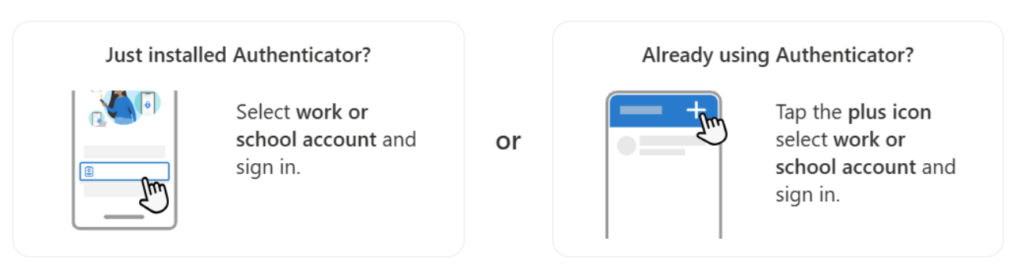
Requirements are simple: iOS 17+ or Android 14+ (15 recommended), Microsoft Authenticator installed, and your must have enabled “Allow self-service set up” for Passkey (FIDO2) in Entra ID.
The process takes about two minutes:
- Download Microsoft Authenticator
- Add work/school account
- Complete existing MFA verification (Lookup Temporary Access Pass, it is a god sent for this situation)
- Enable Authenticator as passkey provider in device settings
- Confirm passkey creation
Done. No IT tickets. No “please come to the office so we can set up your security key.” No shipping hardware tokens internationally. Just a person, their phone, and two minutes of their time.
For organizations struggling with MFA adoption, this is the unlock.
For the IT admin wanting to try Passkey bliss
Of course I have simplified this a bit and there are many complex technicalities to unravel due to the combination of policies one can have in a Microsoft Tenant. But if you are an Admin trying to test this, here are some quick steps (Make sure you have migrated to the new Authentication Methods Policy):
- Disable SSPR for the test user (Man don’t need a password reset service).
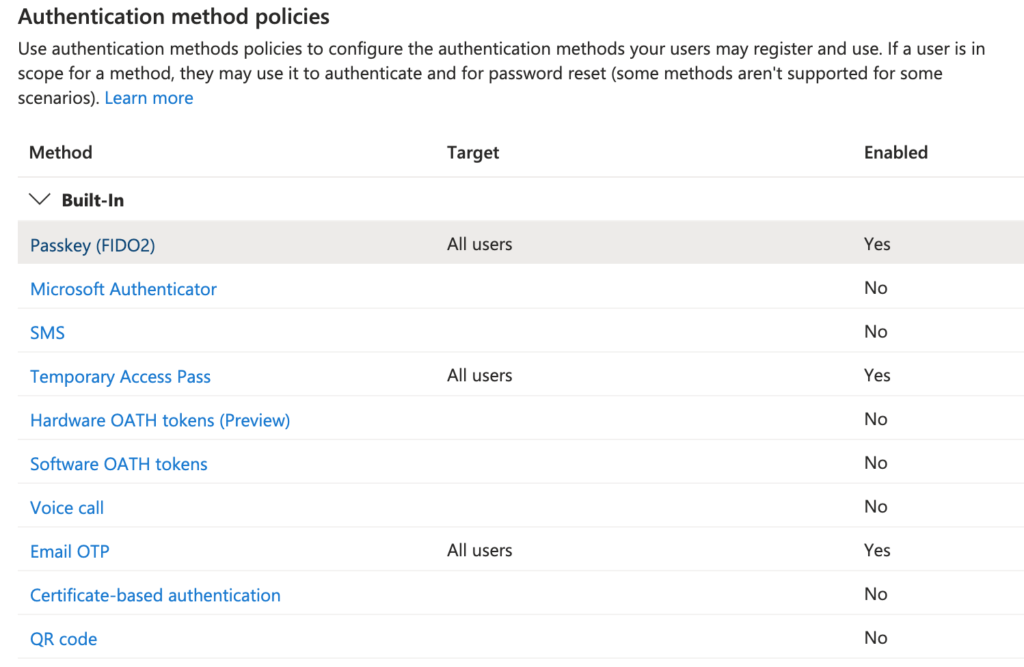
- Enable ONLY: Passkey (FIDO2) and Temporary Access Pass (TAP) Authentication methods for the test user.
- Generate a TAP for the user and then start adding the new work account in the Microsoft Authenticator app.
The process is incredibly simple and quick! If any Conditional Access settings block it, you’ll need to address those. Also, note that the test user doesn’t need to have Authenticator authentication method policy enabled even though we’e using the Authenticator app to mint a Passkey. That applies only to Push message MFA and Passwordless (PSI)!
Since I like sharing my learnings: Here is how my tenant authentication methods policies blade looks. So it is possible just to have Passkeys as the only authentication and still be productive.
IT Admin FAQ: Deployment Questions
Should I use synced or device-bound passkeys?
It depends on your security requirements. For most workforce users in non-regulated environments, synced passkeys offer a good balance of security and usability (no lockout on device loss). For privileged accounts, regulated industries, or scenarios requiring attestation, device-bound passkeys in Microsoft Authenticator are the way to go.
Can I use both types in my organization?
Yes! Microsoft Entra ID supports both. You can configure policies that require device-bound passkeys for admins while allowing synced passkeys for general users (Requires opt-in to the Public Preview at this time).
What happens if an employee loses their phone with a device-bound passkey?
The passkey is gone. This is why you need backup authentication methods or Self-Service Account Recovery (SSAR) configured. Or someone with access has to help you on-board a new key.
Is SMS-based MFA still okay?
It’s better than nothing, but Microsoft has deprecated SMS and voice calls as recommended methods due to SIM-swapping vulnerabilities among other crazy hacks… Move to app-based authentication or passkeys when possible.
What about employees who genuinely don’t have smartphones?
Hardware security keys (like YubiKeys) or the newer, less talked about QR Code login, are your answer. They provide Passwordless auth without requiring a smartphone. Budget for them (Or use the free QR code thingy if possible).
How do I handle users who refuse to use personal devices?
Document the business requirement, provide alternatives (hardware security keys for those who qualify), and escalate persistent refusals to management. This should be a business policy decision, not an IT decision. Your role is to implement the technical solution and provide education – not to negotiate individual exceptions. I would love to hear their excuses/fears in the comments section, so we can help each other with persuasive arguments.
What About Windows Hello for Business?
Yes, Windows Hello for Business (WHfB) is absolutely a passkey provider and has been since Windows 11, version 22H2. While Microsoft’s authentication portfolio can be complex to navigate, WHfB represents a mature, enterprise-ready implementation.
According to Microsoft’s documentation, Windows Hello offers native passkey support that’s device-bound and protected by TPM (Trusted Platform Module) hardware. When you create a passkey with Windows Hello, it’s stored locally on your Windows device and protected by the same biometrics or PIN you use to unlock your PC. These credentials never leave your Windows device – that’s about as device-bound as it gets!

So Why Aren’t We Covering It in Depth?
Platform specificity: Windows Hello for Business is an excellent passkey implementation with enterprise-grade security features, but it’s exclusively for Windows devices. For organizations with heterogeneous environments, this limitation matters.
Since this article aims to help a wider audience understand passkeys across multiple platforms (iOS, Android, macOS, Linux, and yes, even those weirdos still running ChromeOS #NoOffence), we’re focusing on cross-platform solutions like Microsoft Authenticator, 1Password, and other providers that work regardless of your OS.
However, if your organization is Windows-centric and you want the ultimate in device-bound passkey security, Windows Hello for Business deserves serious consideration. Microsoft reports that “nearly a million passkeys are registered every day” through Windows Hello, indicating significant enterprise adoption among Windows-centric organizations and sign-ins are “eight times faster and nearly three times more successful” compared to passwords.
It’s not just the WHfB logo that smiles, it’s the users as well!
Key Differences to Know:
- Platform: Windows-only (10 & 11)
- Passkey Type: Device-bound (non-exportable)
- Storage: Local TPM/secure hardware
- Biometrics: stored in a PII less way.
Bottom line: WHfB is solid if you’re all-in on Windows. For everyone else juggling multiple platforms, stick with the cross-platform options we’ve covered in this article.
Final Words
When I wrote the original MFA article in 2023, passkeys were promising but not quite ready for enterprise primetime. Now they are (imho) – and now, with Microsoft’s mandatory MFA enforcement already in effect for most admin portals, you no longer have the luxury of doing Conditional Access excludes. Passkeys offer the smoothest path to compliance that actually improves security rather than just checking a box (Personally, I now hate doing normal MFA).
The personal phone resistance is real, but it’s based on fear rather than facts. Part of your job as an IT architect is to communicate these facts clearly and compassionately to both management and end users. Position Authenticator not as surveillance software, but as a privacy-enhancing security tool that happens to reside on users’ personal devices.
I sometimes fear that the users view IT a bit like Dr. Clarise in this video clip that might have inspired the Windows Hello feature. Who knows? But I think it is important for your users to be able to trust you, even if you keep talking about Zero Trust.
As always, I hope you find inspiration in this article. And I welcome any feedback in the comments or preferably a follow on LinkedIn @michael-mardahl.
Useful Links to go deeper:
- Plan for mandatory Microsoft Entra MFA
- Passwordless authentication options for Microsoft Entra
- Enable passkeys in Microsoft Authenticator
- Microsoft Authenticator FAQ
- FIDO Alliance – Passkeys
- Original MFA Article (2023)
*This post was enhanced with the help of AI, for readability and cool images! #DontHateThePlayerHateTheGame

 Simon Skotheimsvik
 Jan Ketil Skanke
 Nickolaj Andersen
 Maurice Daly
 Sandy Zeng
 Ben Whitmore



Thanks for the clear, easy to read write up!
Device bound passkeys in Authenticator seem easy to register for us admins but many users in my organisation will probably struggle and become confused when having to enable the Authenticator app as a passkey provider. However anyone using a privileged account should be expected to register and have the competence to do so without phoning support.
Synced passkeys will hopefully negate the need to go through that potentially confusing step as they are already using a familiar password/passkey manager.
It’s clear how it can be enabled and enforced for new users, I’d like to know your ideas on encouraging or prompting existing users to register a passkey. It would be nice if users were prompted like they are when registering for SSPR.
Thanks 🙂
I agree! But for the last part I know something cool is cooking… can’t say anything yet…