


 Anders Ahl
WSL vs Native Linux: A Tale of Two Terminals
If you’re a Windows admin who’s ever dipped a toe into the Linux waters and thought, “Wait, why does everything start with a dot and end in confusion?” – this article is for you.
We’re diving into the pros and cons of Windows Subsystem for Linux (WSL) versus going full penguin with native Linux. Think of it as comparing a Linux-flavored smoothie to the whole fruit – same nutrients, different texture.
Whether you’re trying to script your way out of a jam or just want to impress your DevOps friends at lunch, we’ll help you decide if WSL is your bashful bestie or if it’s time to boot into the real deal.
Spoiler alert: No tuxedo required.
Many organizations face a choice when enabling Linux for developers and power users: provide native Linux machines (or dual-boot setups) or use Windows Subsystem for Linux (WSL) on standard Windows 10/11 clients. WSL comes in two versions – WSL1 and WSL2 – each with different architectures. This report provides a detailed technical comparison of running a native Linux client versus using WSL1 or WSL2 on Windows, covering compatibility, performance, manageability (including Intune and OS deployment), user preference, political considerations, IT support challenges, and Conditional Access implications.
1. Compatibility Comparison
Compatibility encompasses how well each option supports the software users need and the hardware they run on. This includes system call support, application support (including development tools and services), and hardware device access.
1.1 Software and System Compatibility
- WSL1: Uses a translation layer to map Linux system calls to the Windows NT kernel. This allows many Linux command-line tools to run, but not all system calls are supported. For example, WSL1 can not run Docker containers or certain background daemons because it lacks a real Linux kernel and full syscall compatibility. WSL1 also does not support the systemd init system or persistent services. These limitations make some Linux applications incompatible or difficult to run on WSL1 (e.g. services like cron, or container engines).
- WSL2: Employs a lightweight virtual machine with a real Linux kernel, providing full Linux system call compatibility. This means WSL2 can run virtually any Linux software that a native Linux machine can, including Docker and Kubernetes containers, databases, or background services. In practice, WSL2 behaves like a real Linux environment, so most development toolchains (Python, Node, Java, etc.) and workflows run smoothly on it.
- Native Linux: Naturally offers 100% compatibility with Linux software by running directly on the Linux kernel. Any Linux distribution (Ubuntu, Fedora, RedHat, etc.) on bare metal can run the full spectrum of Linux applications, services, and kernel modules. There are no translation layers – it is Linux. This is important for low-level applications: for instance, compiling custom kernel modules, using advanced file systems, or running security tools that need raw socket access or custom system calls are all possible on native Linux without restriction.
Specific Examples:
- Docker Containers: WSL1 can not run Docker Engine natively because of a lack of necessary kernel features. WSL2 can run Docker Engine inside the WSL environment (Docker Desktop integrates with WSL2) and can build/run containers natively. Native Linux of course runs Docker with no issues.
- Background Services: Running a local database service or web server as a daemon is seamless in WSL2 (with systemd now supported) and on native Linux, but WSL1 requires workarounds (e.g., scripting tasks to start in the background) due to lack of service manager support.
- GUI Applications: Windows 11 WSL2 now includes WSLg, which supports Linux GUI apps. Users can launch Linux GUI applications (like editors, IDEs, or even Firefox) and they display in Windows alongside native apps. However, WSLg is intended for individual apps, not a full desktop environment. On native Linux, a full Linux desktop (GNOME, KDE, etc.) can be run, which provides a complete Linux GUI experience. If users need a rich Linux desktop or specific window managers, native Linux (or a traditional VM) is the way to go, since WSL2’s GUI integration is not a full desktop session (no custom window manager replacement for Windows).
- Windows Interoperability: A key feature of WSL (both versions) is integration with Windows. WSL allows access to Windows files and the ability to invoke Windows executables from Linux and vice versa. For instance, a user in WSL can open files in Notepad or launch Visual Studio Code on the Windows side, and Windows apps can call Linux commands via the WSL shell. This interoperability is a plus for WSL that native Linux lacks. With a native Linux machine, interoperability with Windows applications requires network file sharing, remote desktop, or dual-booting – a more complex workflow. WSL provides a unified environment where a user can mix Linux and Windows tools in one workflow (e.g., edit code in a Windows IDE but build and run in Linux). This can be highly productive for certain use cases.
System Call and Kernel Feature Support: Thanks to the real kernel, WSL2 has parity with native Linux on system calls – if an app runs on Linux, it likely runs on WSL2. Conversely, WSL1’s partial syscall support means a small subset of tools might fail (especially those requiring kernel features like FUSE filesystems or certain networking protocols). Microsoft documentation highlights that WSL2’s primary goal was to “add full system call compatibility” and make WSL more powerful. Today, WSL2 covers most needs, and WSL1 is generally only used in rare cases where its unique design has an advantage (one such case is discussed under performance for file I/O).
1.2 Hardware and Device Compatibility
Hardware access is an area where differences emerge:
- Native Linux: Running directly on hardware means full access to all devices, as long as Linux has drivers for them. This includes internal hardware (CPU features, GPU, networking, etc.) and external peripherals (USB devices, serial ports, etc.). Native Linux can utilize GPUs for rendering or compute with full performance (using drivers like NVIDIA or AMD’s Linux drivers) and can interface with specialized equipment (e.g., USB JTAG debuggers, scientific instruments, etc.) if appropriate drivers or interfaces (like libusb, serial drivers) are available. If a developer needs to work with custom hardware or low-level interfaces, native Linux offers the greatest flexibility. It provides better access to hardware interfaces allowing things like PCI passthrough (in VMs) or direct device management.
- WSL2: Because WSL2 runs inside a VM, hardware access is virtualized and somewhat limited. Devices like disks and network interfaces are presented through the Windows host. Microsoft has enabled some hardware integrations in WSL2: GPU: WSL2 supports GPU Compute passthrough for machine learning or GPU-accelerated tasks (with CUDA, DirectML, etc.), but there is an overhead. In practice, GPU-intensive workloads may run slower on WSL2 compared to native Linux. Benchmarks have shown ~33% slower performance for heavy GPU workloads in WSL2 vs native Ubuntu. This is due to the virtualization overhead and possibly less direct access to the GPU hardware. Additionally, not all GPU features (especially graphics/GUI acceleration for gaming or 3D apps) are fully optimized in WSL2 – WSLg can forward X/Wayland to Windows for GUI, but for high-end gaming or OpenGL/Vulkan work, native Windows or Linux still outperform. USB/Serial: WSL2 has limited USB device support. Certain USB devices can be accessed by forwarding them from Windows (for example, USB drives can be mounted via Windows), but direct access to devices like serial ports or arbitrary USB gadgets isn’t natively supported in WSL2. Developers have noted that lack of serial port access is an issue for tasks like embedded development. Some workarounds exist (like using Windows to interface and then passing data to WSL), but it’s not as straightforward as on native Linux. Other Hardware: WSL2 does not support things like PCI device passthrough that one might do in a normal hypervisor. So specialized hardware (FPGA cards, TV tuners, etc.) that could work on Linux might not be usable in WSL2 if the Windows host cannot expose it in a compatible way. WSL2 is tuned for general development scenarios, not for every possible hardware integration.
- WSL1: WSL1 doesn’t use a VM, but it also doesn’t have direct hardware access beyond what Windows offers to the processes. Essentially, if Windows can access a device, the Linux binaries might access it through Windows facilities (for example, network and disks are just Windows network and disk). However, WSL1 can’t interact with devices that require Linux-specific drivers or kernel modules. It has no GPU support (WSL1 cannot use GPU for compute; GPU support was introduced in WSL2). USB and serial access are also not available in WSL1 except through possible Windows-side tools. WSL1 is thus more limited for hardware-dependent use cases than WSL2, which at least introduced some pass-through capabilities.
Hardware Compatibility Summary: If a user’s work is hardware-intensive (e.g. needing 3D graphics, GPU computing, or direct peripheral access), a native Linux client provides the best compatibility and performance. WSL2 covers many developer needs but still has some gaps. WSL is excellent for software development that doesn’t rely on exotic hardware; native Linux is preferred for full control of hardware or for tasks at the system level (kernel development, device driver work, etc.).
1.3 Performance Considerations
Performance is a crucial technical factor when comparing native vs. WSL:
- CPU and Memory Performance: WSL2 has made great strides in performance. Recent analyses show WSL2 on Windows 11 achieves about 95% of native Linux performance in CPU-bound workloads. For tasks like compilation, computation, or running services, WSL2’s overhead is minimal. Multi-threaded performance and CPU-intensive jobs run nearly as fast as on bare metal. WSL1, by contrast, is less efficient for heavy workloads – typically around 70-75% of native performance in benchmarks – due to the overhead of syscall translation and lack of direct execution on a Linux kernel. Memory usage in WSL2 is a bit higher than native since the virtualization layer reserves memory for the VM; WSL2’s base memory footprint and caching behavior can use more RAM than a bare-metal Linux would. However, on modern systems with ample memory, this overhead is often negligible for normal dev workloads.
- Disk I/O: Disk performance can vary drastically: Within its native Linux filesystem (the virtual ext4 filesystem that WSL2 uses internally), WSL2’s disk I/O is very close to native Linux speeds. For example, unpacking files or compiling code within the Linux filesystem is fast. In WSL1, all files reside on the Windows NTFS filesystem and I/O calls are translated, which surprisingly gives WSL1 an advantage when accessing Windows files. Microsoft notes that WSL1 outperforms WSL2 for file operations across the OS boundary (Linux<->Windows). This means: Accessing Windows files from WSL2 (e.g., editing files under /mnt/c/…) can be significantly slower than either WSL1 or doing it on native Linux. In fact, file-intensive operations like large Git clones or npm install that involve thousands of small file writes on a mounted Windows drive can be much slower in WSL2. The recommended practice is to keep project files on the WSL (Linux) filesystem if performance is a concern, or use WSL1 if one must operate on Windows files extensively. Native Linux doesn’t usually need to access NTFS regularly (unless dual-booting and mounting a Windows partition). If it does, NTFS performance on Linux is decent but not as good as NTFS on Windows. In a dual-boot scenario, sharing data between Windows and Linux can also incur overhead or permission issues. But typically, a user on native Linux will use Linux filesystems (ext4, btrfs, etc.) and get full speed. Summary: For pure Linux file workload, native Linux = WSL2 (fast). For cross-OS file sharing, WSL2 is slower; WSL1 or network sharing might be better. If a workflow involves heavy manipulation of files stored on the Windows side, WSL2’s performance penalty is a consideration.
- Network Performance: Generally, networking in WSL2 goes through a virtual adapter (NAT by default, or optionally “mirrored mode” on Win11 which improves integration). Latency to localhost between Windows and WSL might be slightly higher under WSL2’s NAT, but Microsoft has introduced features to make WSL2’s networking more seamless (including the ability for WSL2 to share the same IP as the host in certain modes, etc.). In most cases, network performance differences are minor. Native Linux would have direct network access, which could be slightly more efficient, but for most development use (HTTP calls, database connections) WSL2 is more than adequate.
- GPU/Accelerator Performance: As noted, WSL2 can use GPUs for computation, but with overhead. If a user needs maximum GPU throughput (for, say, training machine learning models or running GPU-accelerated apps), native Linux likely delivers higher performance and more consistent results. For example, typical benchmarks show machine learning training tasks running ~33% faster on native Linux compared to WSL2. WSL1 has no GPU usage at all, so it’s not suitable for GPU-dependent tasks.
In practical terms, the performance gap has narrowed so much that for CPU-bound development tasks, users will notice little difference between WSL2 and native Linux on the same hardware. I/O-heavy workflows and specialized hardware tasks remain the main reasons performance might push one to native Linux.
The following table provides a side-by-side comparison of Compatibility and Performance features for native Linux, WSL2, and WSL1:
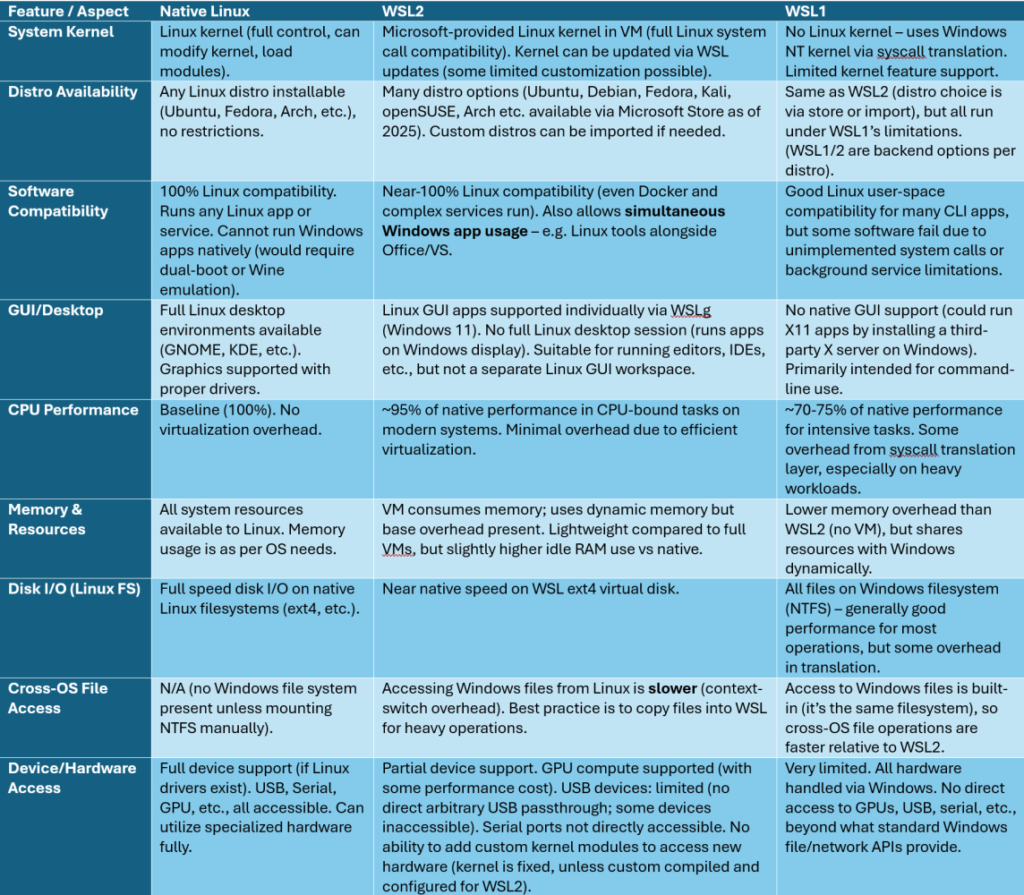
As shown, WSL2 significantly closes the gap with native Linux in software compatibility and even performance, while WSL1 has notable limitations. Still, native Linux maintains advantages in direct hardware utilization and offers the complete Linux user experience. Next, we examine how these differences translate into manageability in an enterprise setting.
2. Manageability in Enterprise Environments
Manageability refers to how easily IT administrators can deploy, control, update, and support the environment. This encompasses device enrollment, configuration management, policy compliance (e.g., via Intune or group policies), patching, and integration with enterprise services like directory and security tools. We compare managing a Windows machine with WSL versus a native Linux machine in a corporate context.
This discussion approaches system management primarily from the perspective of Windows Intune, with consideration given to Linux systems, as opposed to using native Linux management solutions such as Ansible or Puppet, which also support Windows. For organizations whose primary focus is managing Linux environments, adopting a native Linux management platform may be more appropriate; however, it is unlikely that such readers are the intended audience for this article. And yes, I intentionally put this blurb down here so that if I get criticised pushback on the objectivity of the article I can call out that they probably didn’t even read it.
2.1 Device Deployment and Configuration
- Windows + WSL: In most companies, Windows PCs are the standard. Deploying Windows is well-established (often using Windows Autopilot and Microsoft Intune for provisioning). Adding WSL to a Windows 10/11 image is relatively straightforward. Administrators can enable the WSL feature and even pre-install a Linux distribution. According to Microsoft’s guidance, IT can even create a custom WSL image with pre-configured tools and distribute it to developers. Essentially, setting up WSL can be wrapped into the normal Windows deployment process. No separate hardware or dual-boot setup is required – the user gets a standard Windows build, and WSL provisioning can be automated. This reduces complexity compared to maintaining a completely separate OS image. The WSL distributions reside as files on the Windows system and can be updated via normal package managers or replaced by IT with a new image if needed. Importantly, the primary OS remains Windows, so all existing deployment/management tools continue to work.
- Native Linux: Deploying Linux to user workstations may require a new workflow. If the company supports it, they might maintain a Linux image or use PXE imaging, etc. But many enterprises lack Linux desktop deployment automation, especially if only a few users request it. Without a tool like Autopilot, an admin might have to manually install Linux on each machine or craft custom scripts. There are third-party solutions (like using kickstart for Red Hat, preseeds for Ubuntu, or even tools like Canonical’s MAAS or Landscape) to automate Linux deployments, but these are separate from the typical Windows deployment pipeline. This introduces overhead. Additionally, if dual-boot is used (Windows + Linux on one machine), maintaining both OSes on one device is complicated: Windows updates or bootloader updates can occasionally conflict with Linux boot (there have been cases where Windows feature updates overwrote the bootloader or BitLocker being enabled causing headaches with Linux partitions). IT must plan for such scenarios (for example, suspend BitLocker encryption if modifying partitions). In short, introducing Linux clients means introducing new deployment images and processes, which is a higher burden unless the organization already has a Linux device management infrastructure.
- Consistency: From an IT perspective, having a homogenous fleet (all Windows) is simpler. WSL allows users to get Linux capabilities without breaking that homogeneity. A native Linux PC is a different environment altogether.
2.2 Configuration Management and Policy Enforcement
- Intune and Policies (Windows + WSL): A Windows machine with WSL is still just a Windows machine to management tools. Intune can manage Windows 10/11 fully – pushing configurations, compliance policies, software installs, etc. WSL itself can now be partly managed via Intune as well. Recent Intune updates include WSL policies in the Settings catalog and the possibility to let administrators configure the Linux distribution information as part of device compliance. For example, an IT admin could enforce that only approved WSL distros (say, Ubuntu LTS) are used, or that the WSL distro is up to date. This is done by Intune’s device compliance policy: there is a section for WSL which can report the name and version of the distro on the device. This means if a user installs an unauthorized distro (perhaps something with known vulnerabilities), the compliance policy could mark the device as non-compliant. Windows also integrates security for WSL: Microsoft Defender (antivirus) has integration to scan inside WSL file systems for malware. In sum, WSL can be controlled as part of Windows – admins can apply normal Windows policies (like firewall rules, which now also apply to WSL interfaces by default) and use Intune to set certain WSL-specific restrictions or awareness. This integrated manageability is a big plus: IT doesn’t need to manage “another OS” separately; they extend their existing Windows policies to cover WSL scenarios (with some new tooling provided by Microsoft specifically for WSL management).
- Managing Native Linux Clients: This is more challenging in a Windows-centric shop. Intune support for Linux is currently limited. In fact, historically Intune did not support Linux at all, meaning it had no knowledge of or ability to evaluate compliance on Linux-based devices, so any policy requiring Intune compliance would fail for Linux devices (they would be seen as non-compliant by default). Recently, however (late 2022), Microsoft gradually introduced support for Ubuntu, RedHat & WSL in Intune. This allows a Linux device to enroll in Intune and report compliance on a few settings (like requiring disk encryption, certain password policies, and which Linux distro/version is allowed). Even with that: Currently only three Ubuntu LTS versions (with GNOME desktop) are supported, along with two RedHat versions, which covers some user scenarios, but not all. If an end-user prefers Fedora, Arch, or any other distro, Intune won’t manage it. The company would likely have to say “we only allow RedHat or Ubuntu LTS if you want Linux” (which might be a compromise IT sets). The Intune for Linux capabilities are currently primarily compliance reporting. Configuration management (like pushing config profiles or software) for Linux via Intune is not available at this time. That means IT can check if a Linux device meets requirements (e.g., is encrypted, has a strong password, is of an allowed OS version) and then use that for access control, but they cannot easily push down apps or detailed settings via Intune as they can with Windows. Alternative tools: If not Intune, IT could use Linux management tools (Satellite for RHEL, Landscape for Ubuntu, or generic tools like Ansible/Puppet/Chef) to configure Linux clients. But introducing and maintaining those for a small subset of users may be cost and/or skill prohibitive. Also, those would be outside of the unified Intune/Entra ID ecosystem. Group Policy / AD: Traditional on-prem Group Policy doesn’t apply to Linux. Some companies join Linux systems to Active Directory for authentication (using LDAP or Kerberos integration), but they still can’t enforce GPOs the same way. Settings on Linux have to be managed via scripts or management agents.
- Updates and Patching: Windows PCs typically get updates via Windows Update for Business/Intune. WSL distributions need to be updated via Linux package managers (apt, etc) separately from Windows Update. In an enterprise, a Windows + WSL user will receive regular Windows patches as usual. The WSL Linux environment updates are not (yet?) managed by Windows Update (though the WSL software itself updates via the Microsoft Store or online). Microsoft’s enterprise guide recommends using Linux configuration manager tools for updating packages in WSL distributions – meaning IT could script apt-get update or rely on the user to update their WSL environment. On a native Linux, updates would similarly be via the distro’s normal channels (apt, dnf, rpm, etc.). If using Intune’s Linux support, Intune can report if the OS is out of date relative to a policy (for example, if an older kernel version is not allowed), but patching still requires the device to pull updates from Linux repos. One difference is that with WSL, if a user’s Linux environment becomes out of date or misconfigured, an admin could conceivably tell them to just reinstall the WSL image or reset it, which is easier than re-imaging a whole machine. WSL is somewhat ephemeral (you can tear down and recreate the VM in minutes). For a native Linux machine, updating and fixing issues is more involved, like any standalone system.
2.3 Security and Compliance Management
From a security lens, manageability also covers how well each environment integrates with compliance and security monitoring tools:
- Windows + WSL: As mentioned, Microsoft Defender for Endpoint now covers WSL processes. The WSL integration means that if malware is downloaded within the WSL environment, Defender on the Windows side can detect and quarantine it. Also, WSL networking obeys Windows firewall rules by default, so an admin’s firewall or proxy settings apply to WSL as well (ensuring, say, that WSL cannot bypass corporate network monitoring). This unified security posture is beneficial. Device compliance (discussed more in the Conditional Access section) is primarily evaluated at the Windows level, but with the Intune WSL support, the presence and status of WSL can be folded into that compliance state. For example, an organization might mandate that if WSL is used, it must be a certain distro and kept updated, otherwise the Windows device is flagged non-compliant. This kind of policy can alleviate security concerns about WSL (since WSL does introduce another OS that could have vulnerabilities). Overall, a Windows device with WSL can be managed to nearly the same degree of security control as without WSL.
- Native Linux: Security tooling is often a mixed bag. Endpoint protection: If a company uses Microsoft Defender or another Windows-specific agent, that won’t work on Linux (unless the vendor has a Linux agent – some do, like Defender for Endpoint has a Linux client for servers that might also work on Ubuntu desktop). The company would need Linux-compatible security agents for anti-malware, endpoint detection and response (EDR), etc. This might be extra licensing or a different solution (for instance, many orgs treat Linux boxes like servers using tools like Qualys, CrowdStrike, etc., if they support Linux). Disk Encryption: On Windows, BitLocker is managed by Intune. On Linux, LUKS encryption would be the equivalent – Intune’s Linux compliance can at least check if the device is encrypted. But setting up and escrow of encryption keys might not be as straightforward as BitLocker with Entra ID. Compliance/Auditing: With Intune’s Linux support, a Linux device can send compliance data. But if the user is on a non-Intune-supported distro, there’s no built-in compliance tie-in. They’d appear as an unknown device in Entra ID logs. The IT security team would have to decide how to handle that (perhaps by not allowing access from such devices at all, or using only app-level controls). User Admin Rights and Policy: On Windows, IT often controls admin rights (some companies do least-privilege so users are not admins; developers might be local admins though). On Linux, the user by default will have root or sudoer access on their machine (especially if it’s their own machine or a granted dev machine). That might be necessary for development (they need to install packages, etc.). It’s similar to Windows in that sense (developer machines often need admin rights to install compilers, etc., so that’s not hugely different). But group policies to control things like USB usage, or enforce password complexity, etc., don’t directly apply on Linux – Intune compliance policy can require a complex password on Ubuntu/RedHat though.
Bottom Line (Manageability): Using WSL means staying within the well-managed Windows ecosystem, leveraging all existing tools (Intune, Entra ID, software deployment systems) with minimal changes. Running native Linux desktops introduces a new platform that might only have partial support from enterprise management solutions. Unless an organization is committed to multi-OS support, WSL is generally far easier for IT to handle. This helps explain why many IT departments favor WSL or virtualization over granting user laptops with Linux: it’s about maintaining control and consistency.
Before moving to the next topic, the following table summarizes manageability and security differences:
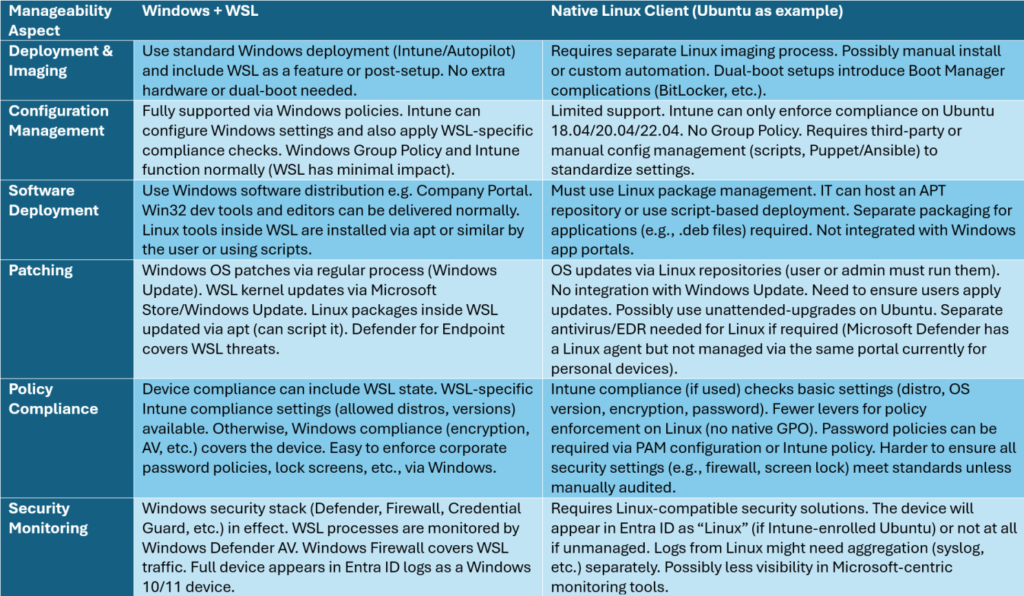
3. Political Factors: User Preference vs. IT Standardization
Beyond pure tech specs, the choice between native Linux and WSL often involves human and organizational factors – the “politics” of IT decisions. This includes user personal preferences and the push-and-pull between user flexibility and IT control.
3.1 User Preferences and Developer Experience
Many developers have strong preferences for their working environment:
- Familiarity & Expertise: Some developers are longtime Linux users who feel more productive in a purely Linux environment. They may prefer native Linux for its workflow and tools. They are used to the Linux file system hierarchy, native shell (with full capabilities), and the customization that comes with an open operating system. Indeed, Linux is known for being highly configurable – from swapping desktop environments to building custom tools – which appeals to power users.
- Favorite Distributions: Personal choice of distro can be almost an ideological matter. Developers might favor distributions like Arch Linux, Fedora, or Debian for various reasons (latest packages vs. stability, etc.). In the past, WSL officially supported only a handful of distros (Ubuntu, SUSE, Debian, Kali, etc.), which might not include a user’s top choice. However, as of 2025, even Arch Linux is officially available on WSL2, reflecting Microsoft’s attempts to cater to what was once considered a niche (“the tryhard’s favorite distro”). Still, running a distro on WSL may not provide the full experience that running it on real hardware does, especially if the user enjoys tinkering with system-wide settings or alternative init systems. Native Linux gives people the freedom to run any distro and configure it however they like, without the constraints of the Windows host.
- Customization & Control: On a native Linux install, users can customize everything – the kernel, the file system layout, window managers, global keyboard shortcuts, etc. They can automate their OS installation (using tools like ansible scripts) and truly “own” the environment. On Windows with WSL, some of that is limited: Windows is still the primary OS controlling a lot of behaviors (window management, device management). For example, a Linux user might prefer a tiling window manager for productivity – that’s not possible in WSL; they’re subject to Windows’ window management.
- Open Source Ethos and Autonomy: Some users simply trust Linux more or prefer its open-source nature. They might not like Windows for reasons including telemetry, bloatware, or philosophical stance.
On the other hand, many developers also appreciate the convenience that WSL offers:
- They can use Windows-only tools (Photoshop, Office, certain corporate apps) side by side with Linux tools. If their workflow involves both worlds, WSL can be ideal.
- They avoid dual-booting hassle (rebooting to switch OS is disruptive). WSL is integrated – they can run an ssh or compile code in Linux and then immediately open the result in a Windows browser or editor.
- Some users new to Linux find WSL an easy entry point without having to leave Windows entirely.
Ultimately, personal preference can be a “political” factor in the sense that passionate power users might push their IT department for special accommodations (like a Linux laptop) because they genuinely feel it’s better for their productivity or happiness. It can become a debate: user satisfaction and efficiency vs. organizational consistency.
3.2 IT Perspective and Policies
From the IT department’s perspective, standardization is key for maintaining supportability and security:
- Supporting Multiple OSes: Every additional OS in the environment multiplies support complexity. IT helpdesk and sysadmins are typically Windows-focused in a corporate setting. Supporting a handful of Linux users may require new training or hiring those with Linux expertise. Troubleshooting issues on Linux (for example, Wi-Fi not connecting, or some software failing) might not be something the existing support staff can easily do. This can lead to slower issue resolution and potential downtime for those users, or it requires having those users be largely self-sufficient (which not all are, despite their preference).
- Infrastructure and Tools: If a company has invested heavily in a Windows-based ecosystem (Active Directory, Group Policy, Entra, Intune, etc.), introducing Linux means either expanding the infrastructure or accepting gaps. For instance, if corporate VPN software is only available for Windows and Mac, a Linux user might be left out or need a clunky open-source VPN client setup. IT might have to find alternatives or make exceptions, which complicates their architecture. Even software licensing can be an issue: some licensed software developers use might not offer a Linux version, meaning IT must still provide a Windows VM or secondary machine for those tasks.
- Security Exceptions: Policies that are trivial on Windows might be impossible on Linux. For example, say a company requires all endpoints to run an endpoint protection agent that isn’t available on Linux. If they allow Linux machines, those might lack this protection, creating a weak link. Or an admin might not be able to enforce disk encryption keys escrow on Linux as they do with BitLocker in Windows. Each exception can become an audit finding or a risk item. Therefore, IT might be reluctant to allow something they can’t secure to the same standard without significant effort.
- Uniform Experience: Companies often aim to provide a consistent environment for all employees for fairness and efficiency in support. Allowing a variety of Linux distros as per user preference could lead to “snowflake” environments – each slightly different – which is an IT nightmare. Even if limited to one distro, it’s still a separate environment from the majority. IT sometimes has to say no to individual preferences for the greater good of maintainability. This can be seen as a “political” stance: the company might officially standardize on Windows, and deviating from that is discouraged or even disallowed, regardless of technical merit, simply to maintain order.
- Cost Considerations: While Linux itself is free, there might be hidden costs in supporting it. If a critical mass of users demand Linux, it might make sense to invest in support; but if it’s one-off cases, the cost per user of support time can be high. On the flip side, if a user truly is much more productive on Linux (for example, a data scientist who can do their work faster), there’s an argument that supporting that user’s preference adds value to the company. Thus, sometimes management has to weigh the benefit of developer productivity vs. the cost of support.
- Cultural and Political Landscape: In some tech organizations (like those heavily into open-source or cloud-native development), Linux might be embraced, and the political pressure might be in the opposite direction – e.g., “why are we all using Windows when our software runs on Linux?” In such cases, WSL might be seen as a half-measure, and there could be internal advocacy for offering Linux laptops or at least VMs. In more traditional enterprises, the push is usually from a minority of users upward to management to allow Linux. Each organization’s politics differ, but the key point is that user choice vs. IT support burden is a classic tension.
Conclusion on Political Factors: Users often cite reasons like personal efficiency, preference, or principle to want native Linux, whereas IT cites security, support, and standardization to prefer sticking with Windows/WSL. WSL can be seen as a middle ground: it gives users a lot of what they want (the Linux environment for development) but lets IT keep the base platform as Windows which they manage. It doesn’t satisfy purists who “simply prefer using Linux” outright, but it can reduce the number of exceptions and special cases in the environment.
4. IT Challenges with User Flexibility
Allowing end-users flexibility to choose their OS (or to significantly customize their environment) introduces several IT challenges, some of which overlap with points already mentioned. Here we enumerate specific challenges when supporting native Linux clients alongside or instead of Windows/WSL:
- Support & Knowledge: IT staff may not be equipped to support Linux desktop issues. This ranges from trivial (“How to connect to the office printer from Ubuntu?”) to complex (“My development toolchain is failing on Linux, but works on Windows – what’s wrong?”). Without in-house expertise or official support channels for Linux, users might end up unsupported or have to self-support. This can lead to inconsistent outcomes and frustration on both sides. With WSL on Windows, support can still focus on Windows issues (since WSL issues might often be resolved by standard dev troubleshooting, or by Microsoft fixes as WSL is officially supported by Microsoft).
- Heterogeneity: If users are given free rein, one might choose Ubuntu, another Fedora, another Arch, etc. Each has different update mechanisms, software versions, and quirks. It’s extremely challenging for IT to accommodate all. To mitigate, companies might restrict to one distribution – but that then might not satisfy all users’ preference (politically, “you can have Linux but only this flavor” could cause discontent if someone really wanted a different one). And even with one distro, user customizations (which are the very thing Linux enthusiasts enjoy) mean each machine can diverge. This heterogeneity complicates deploying company-wide solutions. For example, an internal tool might assume a certain filesystem path or shell – it could break on a non-standard setup.
- Security & Compliance Gaps: We touched on this, but specifically: Endpoint Compliance: An environment where “anything goes” is hard to secure. If one user’s Linux isn’t updated timely and gets compromised, that could threaten network security. IT would need policies to enforce updates, which are non-trivial to automate across different Linux systems without a centralized management tool. Conditional Access Issues: (Segway to next section) Without proper device compliance, Linux machines might be blocked, leading to users finding workarounds and potentially less secure behavior (like using personal devices or VMs). Data Protection: Ensuring things like disk encryption, screen lock, remote wipe capability on Linux may require separate solutions. If those aren’t in place, a lost Linux laptop might pose a greater data leakage risk than a managed Windows laptop (which could be remotely disabled and wiped via Intune if reported lost, etc.).
- Application Compatibility for Corporate Apps: While developers might be focused on their coding tools (which work on Linux), the company might have other required software – e.g., a VPN client, a privileged access management tool, or even simple things like Microsoft Office for certain tasks. Not all of these have Linux versions. If a user is on Linux, IT might struggle to provide alternatives. Often the workaround is to have them remote into a Windows VM for those tasks, which is less efficient. WSL avoids this because the user still has Windows right there for any such app.
- Networking and Domain Services: If the environment uses things like Active Directory domain join for identity and policy, Linux clients either have to integrate via third-party solutions (like Samba/SSSD for AD integration) or remain in a “workgroup” style. This could limit access to certain resources or require separate identity management. Also, network access control systems might not recognize a Linux host properly, etc. With WSL, the Windows computer is domain-joined as usual (hopefully Entra ID joined. After all, it’s 2025 at time of writing); the Linux part doesn’t need separate domain identity (it can even use the host’s Kerberos tickets if configured, etc.).
- User Training and Productivity: Giving full flexibility might lead to users encountering issues they wouldn’t on a managed standard environment. If something breaks on their custom Linux, they lose productivity fixing it. IT finds it difficult to help if it’s something non-standard. WSL by being contained might have fewer such breaking changes (since the user can always fall back to Windows apps if needed as a safety net).
- Fragmentation of Environment: From a governance perspective, supporting multiple OSes might set a precedent. If one team starts using Linux, another might want macOS, etc. Unless that’s a direction the company is willing to go (some do, offering a “choose your OS” approach), it can lead to a patchwork environment that dilutes the efficiency of scale. Standardizing on WSL (for those who need Linux) and Windows for everyone else can be a strategy to keep things uniform: It says “Yes you can use Linux, but within Windows,” which is a compromise to avoid fragmenting into two completely separate endpoint platforms.
In summary, IT challenges from user OS flexibility include increased support burden, inconsistent security postures, difficulties leveraging existing infrastructure, and the need for new tools and knowledge. WSL is essentially an answer to these challenges – it was Microsoft’s way to give developers Linux tools “without needing a separate VM or a dual boot”, thus easing IT’s load. It’s not perfect for all needs, but it dramatically lowers the barrier to offering Linux capabilities in a Windows-centric enterprise.
5. Conditional Access and Device Trust Considerations
Entra ID Conditional Access is a critical part of many organizations’ security strategy. It allows or denies access to cloud apps based on conditions like user, location, and importantly device state. A common policy is to require that a device is compliant or domain-joined to access certain resources (like Office 365, corporate OneDrive, etc.). Let’s compare how native Linux vs WSL factor into Conditional Access (CA):
5.1 Conditional Access with Windows + WSL
When using WSL, the primary device is still Windows, which can be Entra ID joined or Hybrid AD joined (please don’t do hybrid join!) and enrolled in Intune for compliance. Thus:
- From Entra ID’s perspective, the device is Windows 10/11. Conditional Access sees the device OS as Windows and can evaluate compliance via Intune. If the user is compliant (e.g., their Windows device meets all requirements), CA will grant access. The existence of a WSL subsystem does not change that fundamental posture.
- If the organization has a CA policy like “require device to be marked compliant for access,” a Windows PC with WSL can satisfy that because Intune can mark the Windows device as compliant (assuming it meets AV, encryption, etc.). WSL in itself traditionally wasn’t directly part of compliance, but now it can be included: With the Intune WSL compliance checks, an admin could decide that if, say, an unapproved Linux distro is found, they mark the device non-compliant. This would then trigger Conditional Access to block that device. So, interestingly, CA can even be leveraged to control WSL usage: only devices whose WSL meets policy get access. For example, if a user somehow installed Kali Linux in WSL and policy says that’s not allowed for security reasons, the device could be flagged. This level of control is quite granular.
- For standard scenarios, if IT doesn’t care about which WSL distro, the presence of WSL doesn’t stop the device from being compliant. Therefore, a Windows device with WSL is effectively the same as any Windows device for Conditional Access, meaning there’s no loss in ability to leverage CA. The user will log into Entra ID protected resources (like SharePoint, Teams) using Edge or other apps on Windows, and those apps will perform device compliance checks as usual. There’s no special case needed for WSL because WSL apps typically are not directly accessing Entra ID-protected resources (with one rare exception: if someone tried to use a Linux browser inside WSL to access say Office 365 – that might not carry device state. But usually, one would use the Windows browser for such things).
- Also note: Conditional Access can apply conditions based on OS. One could have a policy “block Linux devices” or “allow only Windows and Mac”. If such a policy exists, it typically detects the client OS by user agent or device identity. WSL apps, if they somehow access directly, might appear as Linux. But generally, users on WSL would use Windows clients for corporate apps, so CA will think it’s Windows.
5.2 Conditional Access with Native Linux
With a native Linux client, the situation is trickier:
- Device Compliance: Intune’s support for Linux allow Ubuntu and RedHat desktops to enroll. Now, such a Linux device can register in Entra ID (as an Entra ID device object) and report a compliance status. If it meets the compliance policy (e.g., running Ubuntu 22.04, encrypted, etc.), Intune marks it compliant. In CA, that device will then satisfy “require compliant device”. Therefore, for those specific supported Linux distros, Conditional Access can treat them similarly to Windows in terms of compliance.
- However, if a user’s distro is not supported by Intune (say Fedora or even an unsupported Ubuntu version), then there is no way for it to be marked compliant. Conditional Access would see it as an “unsupported” device. An admin could include “Linux” in the CA device platform condition and either allow or block it explicitly. Many organizations by default block all device platforms except those they manage. If Linux isn’t managed, it might fall under a default “block other devices” rule.
- Conditional Access via Browser: A nuance – even if Intune supports the device, the user’s method of access matters. According to the Intune Linux documentation, the Linux version of Microsoft Edge is required to leverage CA device compliance. This is because Edge on Linux knows how to perform the device authentication with Entra ID. If the user tried to use Firefox (this article will not go down the rabbit hole of browser choice) on Linux to access, it might not convey the device identity, and CA might not count the device as compliant. Essentially, Microsoft Edge (signed in with work account) on an enrolled Linux device can present the device certificate to Entra ID, satisfying CA checks. Other apps or browsers might not. So in practical terms, a Linux user might be limited to using Edge to access Office 365 or other Entra ID apps if the policy is strict. This is a bit limiting compared to Windows, where almost all Office apps and browsers are integrated with Entra ID.
- Domain Join vs. Entra ID join: Linux cannot be domain-joined in the traditional sense for CA (only Windows domain-joined devices can satisfy the “Hybrid AD joined” condition). It can only be Entra ID registered (a prerequisite step for Intune enrollment). So if a policy specifically requires “Hybrid AD joined”, a Linux device would not qualify. Usually, though, CA policies use the compliance route which is now viable for Linux or they list allowed OSes.
- Legacy apps and Conditional Access: If the user is using something like an IMAP email client on Linux and the policy requires device compliance, that likely would not work at all because Conditional Access might not even apply properly or the connection will be blocked for not being modern auth from a compliant device. This could mean Linux users have to use web mail (Edge) or some other supported method.
In summary, native Linux in a world of Conditional Access could be at a disadvantage unless the organization specifically sets it up:
- Before Intune for Linux, Linux devices were effectively second-class citizens, often relegated to web-only access with strict limitations.
- Now, with Ubuntu & RedHat support, a Linux device can be compliant and thus allowed. But the user’s freedom of distro choice is curtailed if they want access – they likely must stick to what IT supports (which might undermine the whole “favorite distro” idea).
- WSL, being hosted on Windows, inherits Windows’ fully supported status. The user doesn’t have to worry that using WSL will block them from anything – their device remains a fully trusted Windows device as far as Entra ID is concerned.
5.3 Practical Implications for CA
Use Case: Access to Office 365:
- On a Windows + WSL laptop: Users sign in to Office, Teams, etc., normally (likely with Windows Edge or Office client apps). Device is marked compliant, so they get in seamlessly with Single Sign-On. They can also run WSL in the background for development work simultaneously.
- On a Native Linux laptop: The user would open Edge on Ubuntu, sign in to Office 365. If their device is Intune enrolled and compliant, they get access. If not, they might be blocked or forced to do MFA every time (depending on policy fallbacks). Needs Edge specifically; other software like Teams has a Linux client which might or might not pass device claims. This user can’t use the full Office desktop apps (there is no Office for Linux), so they rely on web apps or perhaps use virtualization for any Windows-specific apps.
Use Case: Conditional Access requiring certain device filters: For example, some CA policies target “device platform = Windows” differently from “device platform = Linux”. If an org has a policy that, say, bans Linux devices for certain sensitive app, a native Linux machine would hit that rule and be blocked. A WSL user would appear as Windows and not be blocked. This could mean a native Linux user must find a workaround (maybe RDP into a Windows jump box to use that app, which is inefficient). So depending on how policies are configured, WSL can slip under stricter rules meant to exclude non-managed devices, whereas a Linux PC might trip them and need explicit accommodation.
Device Identity in Entra ID: A Windows PC (with WSL) will have a device object in Entra ID (if Entra ID joined) or at least hybrid joined in AD. A Linux PC that is Intune enrolled will have an Entra ID device object as well (marked as Linux). The capabilities tied to that object (like using it for CA and Intune) are newer for Linux and not as feature-rich, but at least they exist now.
One more note: Multi-factor authentication (MFA) and Conditional Access often go hand in hand. If a device is not compliant, many policies force the user to do MFA each time or outright block certain apps. Linux users might find themselves doing MFA more if their device isn’t recognized as compliant. This is a user experience hit that can be frustrating and affect productivity. With WSL, one can avoid that because their Windows device can stay in the “trusted” zone after one-time compliance.
Conclusion
Both native Linux and WSL approaches have clear pros and cons, and the right choice depends on context.
From a compatibility and performance standpoint, WSL2 has closed the gap significantly with native Linux, offering near-native speeds and broad application compatibility. WSL1, while pioneering, has notable limitations and is generally only used in edge cases now. Native Linux still wins for complete hardware access and certain intensive workloads (especially involving cross-OS file operations or high-end GPU use). In pure technical terms, a developer can accomplish most tasks in WSL2 that they could on a standalone Linux system, especially with recent improvements like GUI support and systemd.
When it comes to manageability and enterprise integration, a Windows machine with WSL is far simpler to support. It leverages existing Intune, Defender, and policy ecosystems, meaning lower overhead for IT. Native Linux desktops introduce new variables that many enterprise IT orgs aren’t fully prepared to handle at scale – though Intune Linux support is easing one aspect, it’s still a narrow solution.
The “political” or human factors reveal a tug-of-war: developers cherish flexibility and often have personal favorites (with Linux offering an element of freedom and identity in how their system is set up), whereas IT emphasizes security uniformity and risk mitigation. WSL is a clever compromise in this war: it gives a lot of Linux capability without ceding control of the underlying system to the user completely. Some will argue it’s the best of both worlds; others might see it as the worst of both (having to maintain Windows overhead while not getting a pure Linux). But in practice it has been a successful middle ground in many companies.
Conditional Access highlights a strategic advantage of WSL: a Windows device with WSL can fully participate in modern Zero Trust security models (device compliance, conditional access) with no special handling. A Linux device requires additional setup and even then is limited to certain distributions and client apps. This can be a deciding factor in environments with strict access controls.
Finally, consider that technology is evolving: Microsoft has even open-sourced parts of WSL and continues to improve its performance and integration with Windows. At the same time, management tools for Linux are improving in the Microsoft ecosystem (Intune might expand distro and feature support in the future). So the gap in manageability could narrow in coming years, just as the performance gap did. But as of today, running WSL2 on a Windows client is generally the path of least resistance for IT to empower Linux-loving developers, whereas native Linux provides an unmatched experience for the user at the cost of significant IT challenges.
In summary:
- Choose native Linux for users who need full Linux capability and hardware access, and if you have the IT support structure to manage it (or the users are self-sufficient). It offers maximum compatibility with Linux tools, slightly better performance in edge cases, and satisfies those who require or strongly prefer a pure Linux environment. However, be prepared to handle the shortcomings in enterprise manageability and potentially limited access to some corporate resources.
- Choose WSL2 on Windows for most scenarios where users need Linux tooling. It delivers excellent performance and broad compatibility (enough for the vast majority of development work), while allowing the machine to stay within the standard Windows management and security umbrella. WSL1 is largely legacy; WSL2 should be the default unless an unusual scenario warrants WSL1 (for example, working on very heavy Windows <-> Linux file operations or if using an older Windows version that doesn’t support WSL2, in which case you should probably look at upgrading Windows!).
Both options can coexist as well: some organizations might give developers a powerful Windows laptop (with WSL) for everyday use and perhaps provide access to Linux servers or VMs for special needs. The best solution aligns with both the technical requirements of the workflows and the capabilities of the IT team to secure and support the environment. By carefully weighing the pros and cons detailed in this article – compatibility, manageability, user preference, IT burden, and security posture – an informed decision can be made that optimizes productivity while maintaining corporate governance.

 Ben Whitmore
 Jose Schenardie
 Simon Skotheimsvik



Awesome article, thank you Anders.
Hi Reece!
Thanks! I’m glad you found it useful! Happy holidays!