

 Anders Ahl
Recently, I was tasked with making sure Windows logging didn’t just log off when it came to regulatory compliance. During this deep dive, I dusted off an old favorite: the Sysinternals toolset, still a solid state in the world of troubleshooting. What surprised me? Despite being free, simple, and Microsoft-maintained, Sysmon barely gets a byte of attention in blogs and articles these days. That’s odd, because here’s the kicker: Sysmon is about to become a native citizen of Windows! This move will make it even more appealing for security-conscious IT pros who want their monitoring to be more than just eventful. As I re-explored its capabilities, I decided to document my findings in a blog post, because why keep all the logs to myself? Hopefully, this helps you avoid any audit trails of tears as you tackle your own implementations.
Microsoft Sysmon (System Monitor) is an advanced system monitoring service from the Sysinternals suite that provides detailed Windows event logging beyond what the operating system offers by default. By logging critical system activities – process creations, network connections, registry changes, and more – Sysmon gives system administrators and security teams deep visibility into Windows that native logs alone can’t provide. This makes it invaluable for detecting stealthy threats and conducting forensic investigations. Crucially, Sysmon is a free tool published by Microsoft as part of the Sysinternals utilities (originally created by Mark Russinovich and Bryce Cogswell), so it’s widely trusted and integrates seamlessly with Windows. And with Microsoft announcing that Sysmon’s capabilities will be built into Windows 11 and Server 2025 in 2026, deploying it across your environment will soon become even easier.
Why does Sysmon matter for system administrators? In short, it captures security-relevant events that standard Windows logging misses, and it allows you to fine-tune what’s collected. However, to reap the benefits you must configure it carefully – without proper filters, Sysmon can generate huge volumes of data. Below, I’ll explain what Sysmon does, how it differs from built-in Windows logs, real-world examples of how it aids investigations, best practices for configuring it (including community-favorite configs like SwiftOnSecurity’s), and what the upcoming native integration means.
What Is Sysmon? (And the Sysinternals Connection)
Sysmon is a Windows system service and driver that logs high-detail system activity into the Windows Event Log. Once installed, it runs continuously in the background (even across reboots) to monitor a wide range of OS events and write them to the Microsoft-Windows-Sysmon/Operational log channel. Unlike basic Windows auditing, Sysmon records rich information for each event, including:
- Process creations – with full command-line arguments, hashes of the executable, parent process ID/GUID, user session, etc..
- Network connections – source/destination IPs and ports, process initiating the connection, and protocols.
- File changes – creation of new files, changes to file timestamps (to catch tampering), and even optional file delete archival.
- Driver & DLL loads – when drivers or libraries are loaded into processes, including their signatures and hashes.
- Registry modifications – creation or deletion of registry keys/values, changes to important autostart entries, etc..
- Raw disk access – attempts to read disk sectors directly (often a trick to bypass file-based logging).
- WMI activities – registration of WMI persistences (filters, consumers) often used by malware.
- Intrusion techniques – events for things like process injection (CreateRemoteThread in another process), suspicious process access (opening another process’s memory), and other tampering attempts.
In essence, Sysmon is purpose-built for security monitoring and forensics: it surfaces the low-level behaviors that attackers exploit, giving admins a trail of breadcrumbs to follow. Microsoft’s official documentation notes that by collecting and analyzing Sysmon’s events, you can “identify malicious or anomalous activity and understand how intruders and malware operate on your network”. Notably, Sysmon doesn’t analyze events or raise alerts itself – it simply generates the data, relying on you or your SIEM to interpret it.
Sysmon is part of the Sysinternals suite, a set of advanced Windows utilities (like Process Explorer, Autoruns, etc.) originally developed by Mark Russinovich and Bryce Cogswell. Microsoft acquired Sysinternals in 2006, and Sysinternals tools are now freely provided and supported by Microsoft. So although Sysmon started as a third-party utility, today it’s effectively an official (but optional) Windows component. In fact, Microsoft’s own announcement calls Sysmon “a free Microsoft Sysinternals tool”. This lineage is important: Sysinternals tools are widely respected in the Windows admin community, and having Microsoft behind Sysmon gives confidence in its reliability and future. (Russinovich, now Azure CTO at Microsoft, continues to shepherd Sysinternals – a good sign that these tools remain a priority for Microsoft.)
How does Sysmon differ from Windows’ built-in logging? Windows Event Viewer and audit policies can log many of the above activities in some fashion, but not with the same completeness or consistency. For example, Windows Security logs can record process start events (ID 4688) but typically don’t include the process command-line or a hash of the binary – Sysmon does. Default Windows logs also don’t capture every network connection or registry change unless you’ve enabled specific, often esoteric audit settings. Sysmon centralizes a broad array of security-relevant events in one place, with a stable schema that is consistent across Windows versions (making it easier to parse and correlate). A great way to think of Sysmon is as an “upgrade” to Windows event logging for security: it supplements (not replaces) the native logs with far more detail. As one guide put it, Event Viewer might simply note that a process ran, whereas Sysmon will tell you which process, launched by what command line, from which parent, with what hash, and what it did next (opened a network connection, etc.). That level of context is exactly what modern threat detection and forensic analysis demand.
Sysmon vs. Native Logging – An example: If an attacker injects code into lsass.exe to dump credentials, a default Windows system might only log a few generic security events (if any). Sysmon, by contrast, can log the suspicious process that initiated the injection, the fact that it opened the LSASS process’s memory, and any resulting file writes or network calls. This gives incident responders concrete evidence of the attack (process names, timestamps, techniques used) that would be nearly invisible otherwise. In short, Sysmon closes critical blind spots in Windows’ native auditing.
Key Sysmon Event Types and Forensic Value
Sysmon produces a variety of event types, each identified by an Event ID. Below is a summary of some key Sysmon events that are especially valuable for security monitoring and forensic investigations, along with why they matter:
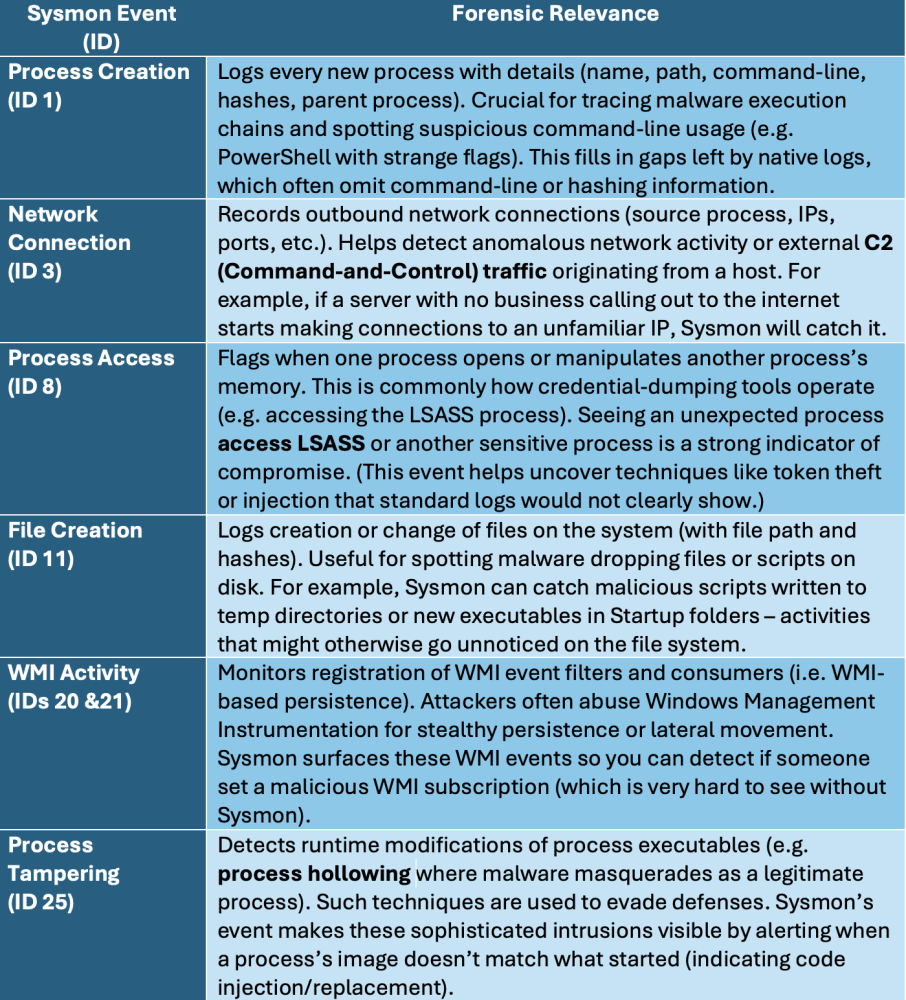
As shown above, Sysmon events provide actionable forensic details. An investigator who has access to Sysmon logs can answer key questions like “How did the attacker get in and what did they do?” by tracing process IDs across these events. For instance, using the combination of Event ID 1 (process start) and Event ID 3 (network connect), you might find that a suspicious PowerShell process was launched with a Base64-encoded command and then opened a connection to an IP in Eastern Europe – clear signs of malicious activity. Similarly, an Event ID 8 for a process accessing LSASS (the process that holds user credentials) is a smoking gun for credential theft attempts (e.g., Mimikatz-like behavior).
In practice, Sysmon has repeatedly proven its worth by exposing attacks that default Windows logs would miss. Security teams have shared many real-world examples. For instance, in an incident where an attacker used a built-in tool (comsvcs.dll) to dump credentials from memory; Sysmon caught it by logging a strange process execution and the memory access on LSASS (Event ID 1 and 8), whereas standard logs showed almost nothing. In another case, an attacker tried to quietly copy the Active Directory database (NTDS.dit) – Windows gave no obvious sign, but Sysmon recorded the PowerShell command launching NTDSUtil and even the handle opened on the LSASS process to perform the dump (Event ID 1 and 10 in that scenario). During the infamous Exchange Server ProxyLogon exploits of 2021, some organizations that had Sysmon deployed were able to detect the hack early: Sysmon logs revealed unusual processes spawned on the Exchange server (w3wp.exe spawning cmd.exe or PowerShell), suspicious file writes, and network calls out to the attacker’s servers – clues that enabled a response before ransomware was launched.
All these examples underline a key point: Sysmon’s detailed telemetry can mean the difference between catching an attack in time versus never realizing you were compromised. Even after an incident, having Sysmon logs greatly aids forensic analysis – investigators can reconstruct an attacker’s steps in detail (which files they touched, what code they ran, what backdoors they left, etc.) by piecing together the Sysmon event trail. Without Sysmon, many of those breadcrumbs simply wouldn’t exist.
Best Practices for Sysmon Configuration and Tuning
While Sysmon is powerful, using it effectively requires good configuration. Out-of-the-box, Sysmon will log a wide range of events, many of which could be benign or irrelevant in your environment. If you simply turn on every event, a busy server or client could generate an overwhelming flood of logs – potentially millions of events per day. Not only can that strain your log storage and SIEM, it also makes it hard to spot the truly suspicious activities in the noise. Therefore, strongly consider these best practices when deploying Sysmon:
- Use a Proven Base Configuration: Rather than starting from scratch, leverage community-vetted Sysmon config files. A great example is SwiftOnSecurity’s Sysmon configuration on GitHub – a widely used template with “sane” defaults that capture high-value events while filtering out known noise. SwiftOnSecurity’s config focuses on common attack techniques and excludes a lot of trivial events. Microsoft even references this config as a starting point. Another is Olaf Hartong’s SysmonModular config, which breaks out rules into modules for easier tweaking. Starting with one of these can save you countless hours.
- Tune to Your Environment: Every network is different. Review and customize the config to exclude activity that is noisy-but-normal in your context. For example, you might filter out your endpoint security software processes if they generate constant benign events (no need to monitor your monitoring tools, like for instance Defender). Similarly, developer workstations might legitimately execute unsigned scripts or probes that would look alarming elsewhere – adjust your filters accordingly. Sysmon configs allow include and exclude rules on various criteria (process names, paths, integrity levels, etc.), so use those to drop known good events and keep the suspicious ones.
- Focus on High-Risk Areas: A common tuning approach is to focus logging on known attack vectors. For instance, you might only monitor file creations in directories attackers commonly abuse (like temp folders, startup paths, the user profiles). You might hash only executables and scripts (EXE/DLL/PS1/etc.), rather than every single file type, to reduce overhead. By narrowing scope to what matters, you maintain visibility where it counts without drowning in data.
- Iterate and Refine: Treat your Sysmon deployment as an evolving project. Start with a broad but reasonable config, observe the logs for a few days/weeks, and then refine. If you see events that are always benign, add an exclusion for them. Conversely, if you realize you’re missing an event that would have caught something important, broaden the filters or enable that event type. Over time you’ll achieve an optimal balance of signal-to-noise. Vendors and community contributors often update their recommended configs as new threats emerge – consider checking for updates or community discussions for your config.
- Use Sysmon’s Filtering Capabilities: Sysmon supports tagging rules with “include” or “exclude” logic and can even be reloaded on the fly when you update the config. Make use of that dynamic filtering to adjust to new requirements. For instance, during a high-profile incident response, you might temporarily broaden logging to ensure you catch everything, then tighten it back down after. The key is that Sysmon gives you flexibility to decide what is worth logging – exploit that to avoid both under-logging and over-logging.
Remember that Sysmon is a complement to native Windows logs, not a replacement. You should still maintain appropriate Windows audit policies (e.g., for logon events, object access, etc.). Sysmon augments those by filling in gaps (process details, etc.). Used together, and tuned well, they provide a much more complete picture of system activity.
Looking Ahead: Sysmon as a Native Windows Component in 2026
One reason Sysmon has sometimes been a hurdle for admins is the deployment and maintenance effort – you had to manually install the Sysmon tool on all your machines and keep it updated. That is about to change. Microsoft has announced that starting in 2026, Sysmon’s functionality will be built directly into Windows 11 and Windows Server 2025 (as an optional feature enabled via Windows Update). This means Sysmon will no longer require a separate download or third-party deployment; administrators will be able to turn it on as an integrated Windows feature (likely via the “Turn Windows features on/off” dialog or a PowerShell command). The built-in version will support the same custom configuration files and filtering rules, and events will still go to the Windows Event Log as they do today. Essentially, Microsoft is “productizing” Sysmon due to its importance, which is great news for security-conscious organizations.
What does this mean for you? If you aren’t using Sysmon yet, it’s a good time to start learning and piloting it. There’s no need to wait for 2026 – Sysmon is available today and the knowledge and configs you build now will carry over to the native version. By deploying it now, you can harden your environment immediately and be ahead of the curve when the official integration arrives. Microsoft has indicated that making Sysmon native will reduce the operational overhead (no more manual updates or worrying about unsupported usage) and even hinted at future enhancements like enterprise-wide management and AI-driven analysis on Sysmon data. But the core value remains the same: deep visibility into Windows for threat detection.
To get started, you can download the Sysmon tool from Microsoft’s website (until the native feature is out) and use a sample config from GitHub (such as the SwiftOnSecurity config mentioned earlier). Many online guides walk through deployment; in general it’s as simple as running:
Sysmon.exe -accepteula -i <configfile>
in an admin command prompt to install the service with your chosen config. Once running, events will stream into Event Viewer under Applications and Services Logs → Microsoft → Windows → Sysmon. From there, integrate that channel into your SIEM or central log collector so you can start analyzing the rich data.
Conclusion
For system administrators and security teams, Sysmon has become an indispensable tool for advanced logging and threat hunting on Windows. It delivers a level of insight that standard Windows logs alone cannot, from catching subtle attacker techniques (like code injection, credential dumping, or fileless malware) to enabling comprehensive forensic reconstructions of incidents. By deploying Sysmon with a well-tuned configuration, you substantially increase your chances of detecting breaches early and piecing together what happened if one occurs. Given that Microsoft is officially baking Sysmon into the OS in the near future, the writing is on the wall: this is the direction of Windows security monitoring. Embracing Sysmon now is a smart move – it’s free, it’s powerful, and when configured correctly, it provides high-fidelity security telemetry with manageable overhead. In the cat-and-mouse world of cyber defense, having those extra “eyes and ears” on your systems can make all the difference, and Sysmon is exactly the kind of capability that can tip the balance in favor of the defender.


 Simon Skotheimsvik
 Ben Whitmore




Add comment